Ever wonder why your desktop sometimes feels slow? Upgrading your PC can boost its speed for both work and play. This guide lays out a simple plan so you can avoid common mistakes and get the most out of your upgrade.
We explain how small changes, like adding more RAM (memory that helps your computer run multiple tasks) or a faster graphics card (the part that handles images and videos), can make a big difference. Get ready to refresh your setup with easy, practical steps for a smoother, faster desktop experience.
Core Steps in Your Desktop PC Upgrade Guide
When you upgrade your desktop, a clear step-by-step plan helps you avoid mistakes and makes sure every new part works well with the rest. A good roadmap saves you time and effort, ensuring each upgrade brings real benefits. For example, you might start with a surprising fact like "Upgrading from an old graphics card to a modern one can boost frame rates by over 30% in many games." This shows how a small change can lead to big improvements.
- Add more RAM. For example, if you have 16 GB, add extra sticks to reach 32 GB if you have free slots.
- Put in faster storage drives, such as SSDs or NVMe drives. Many motherboards can handle up to three extra NVMe drives.
- Change your graphics card to improve visual performance for games and creative tasks.
- Upgrade the CPU. For instance, move from an entry-level model (like Intel i3 or Ryzen 3) to a higher tier (i5/i7 or Ryzen 5/7) if your motherboard supports it.
- Make sure your power supply can handle the extra power required by faster components.
- Replace the motherboard if needed so you can use modern parts like DDR5 RAM and the latest CPUs.
- Improve the cooling system to keep everything running smoothly and avoid overheating.
- Add new peripherals that boost your interaction and productivity.
- Choose a new PC case that gives you better airflow, easier cable management, and room for more hardware.
- Optimize drivers and power settings in your software to make sure you get the best performance from your upgrades.
Following this step-by-step plan will give you a balanced upgrade, reliable performance, and a setup ready for advanced tasks and future improvements.
Identifying Components to Upgrade in Your Desktop PC

Start by checking your PC to make sure it is running well. Open the case and remove dust from the fans and heatsinks. A quick clean helps airflow but rarely fixes major slowdowns.
If the system feels sluggish, you might want to reinstall the operating system (the main software that runs your computer). This step clears out extra files and outdated drivers so you can tell if the slowdown is from the hardware and not messy software.
Here are five signs that you may need a hardware upgrade:
- Games or demanding programs run below 60 FPS (frames per second).
- Your storage is almost full, causing long load times.
- The CPU and GPU (graphics processor) are not working evenly.
- The operating temperatures stay high, which can slow things down.
- You notice lag or stuttering when multitasking or gaming.
Desktop PC Upgrade Guide: Boost Your Performance
Every part in your desktop must work together for smooth performance. When you upgrade, make sure your RAM, CPU, GPU, storage, and power supply are all in sync. Using the wrong RAM or an old BIOS can cause crashes or even damage your system.
Check that your motherboard supports the proper CPU socket, the right type of RAM (DDR4 or DDR5), the M.2 slots needed for SSDs, and enough PCIe lanes for your GPU. Also, verify that your power supply has enough wattage and the proper connectors. Finally, update your BIOS so your system can recognize the new components. These checks help you avoid wasting time, money, and effort.
| Component | Compatibility Aspect | Example |
|---|---|---|
| RAM | Type & Slots | DDR5, 4×288-pin slots |
| CPU | Socket & BIOS | LGA 1700, BIOS v120+ |
| GPU | PCIe Version | PCIe 4.0 x16 support |
| Storage | M.2 & SATA Ports | 3×M.2, 4×SATA |
| PSU | Wattage & Connectors | 650 W, 2×8-pin PCIe |
Lastly, update your BIOS and firmware if needed. This simple step ensures your system recognizes the new parts and delivers the best possible performance.
Installing Upgraded Components in Your Desktop PC Upgrade Guide
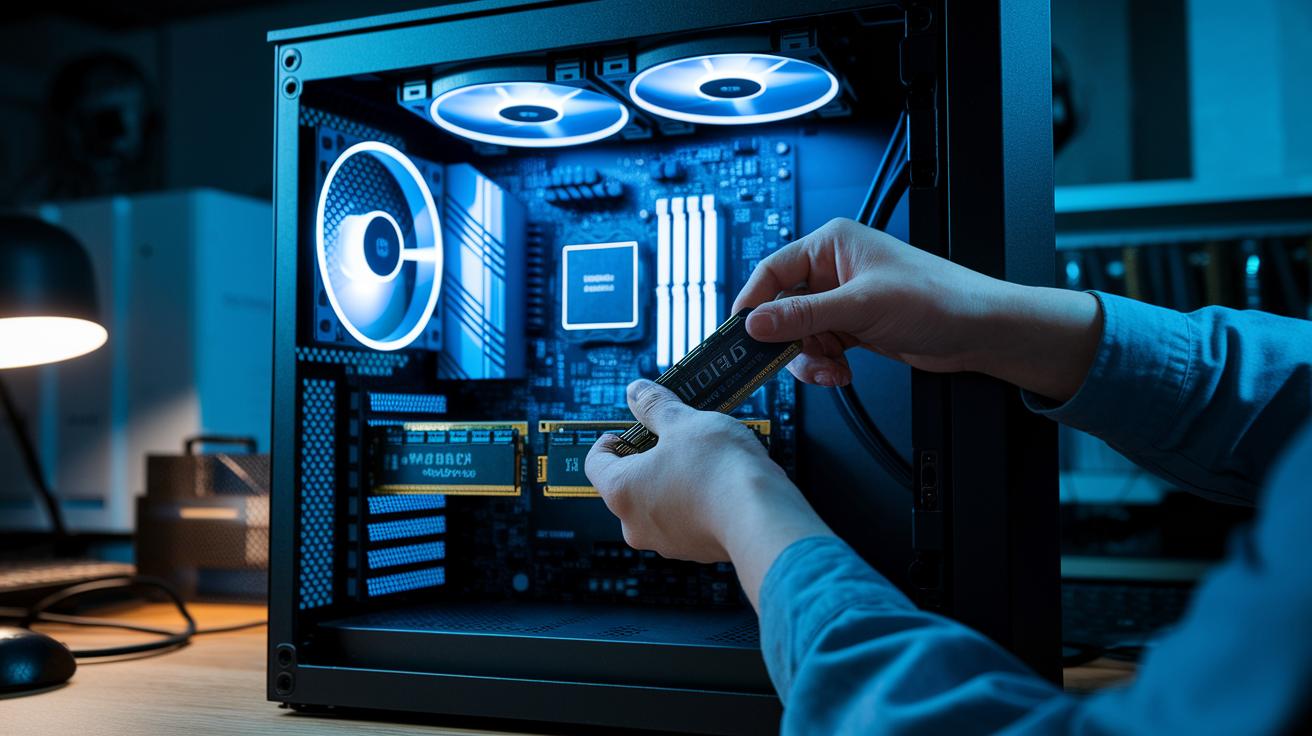
Before adding new RAM, shut down your PC, unplug it, and touch a metal surface to remove any static. Open the case and find an empty slot. Line up the stick’s notch with the slot and press it in firmly until the latches click. Use the right tools and follow the manufacturer's guide to ensure it is secure. Finally, double-check all connections before closing the case.
To install an NVMe SSD, power off your system and disconnect all cables. Ground yourself by touching metal to avoid static damage. Open the case and locate the M.2 slot on the motherboard. Insert the SSD at a 30° angle and secure it with a screw. Use a small screwdriver and follow the manual carefully for best results.
When replacing your graphics card, start by disconnecting your PC and removing the case cover. If needed, take off the expansion slot cover. Carefully press the new graphics card into the PCIe x16 slot until it clicks in place. Then, attach the required 6-pin or 8-pin power cables securely. Remember to ground yourself and use proper tools, and if you have one, wear an antistatic wristband.
For upgrading your CPU and cooler, ensure the system is powered off and unplugged first. Remove the cooler by releasing its retention lever and gently lift out the old CPU. Insert the new CPU by matching its marker correctly, apply a thin layer of thermal paste, and reattach the cooler firmly. Follow all safety guidelines and manufacturer instructions while keeping your workspace neat.
When upgrading the power supply (PSU) or adding better cooling, disconnect all power cables and remove the old PSU with the proper screwdriver. Mount the new PSU securely and reconnect the modular cables with care. Install new fans or a liquid cooling system as described in the manual. Always discharge any static and maintain a tidy work area, then verify all connections before finishing up.
Performance Testing and Troubleshooting in a Desktop PC Upgrade Guide
Once you finish your upgrades, run benchmarks to see how each part boosts your system. Use tools like 3DMark for your graphics card, Cinebench R23 for your CPU, and CrystalDiskMark for storage. These tests let you compare your system's performance before and after the upgrades, and they help spot any issues. For example, a higher Cinebench R23 score shows that the new CPU and cooling setup are working well, meaning your investment is paying off.
Next, focus on optimizing your system. Update your drivers to the latest versions and set your BIOS power profile to high performance. Fine-tuning your operating system settings can clear up software slowdowns. Think of it like calibrating an engine; your upgraded hardware works best when everything is in sync. Using a high-performance mode minimizes background tasks so apps start quicker and multitasking feels smoother.
Finally, check for common issues to complete your setup. Driver conflicts, low PSU wattage, or thermal throttling can hurt your computer's performance and stability. Regular monitoring helps you catch these problems early. If you experience sudden stutters or crashes, it might mean there's overheating or a loose connection. Consider these steps:
- Roll back drivers if conflicts appear.
- Check your PSU's wattage and secure all connectors.
- Monitor temperatures to catch signs of overheating.
- Reseat cables to ensure they are firmly connected.
Budget-Friendly and Future-Proof Strategies in Desktop PC Upgrade Guide
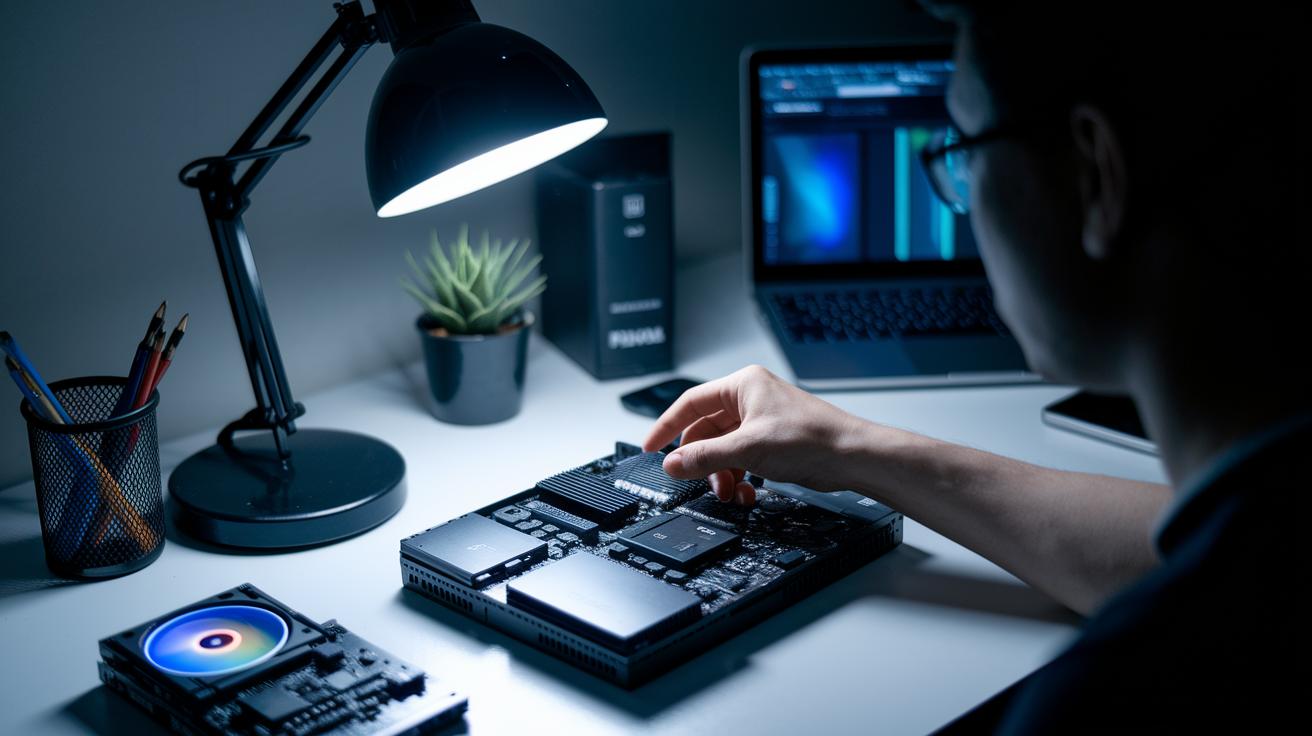
If you are upgrading on a tight budget, choose parts that give you the best performance for your money. For example, switching from a traditional hard drive to a SATA SSD speeds up boot times and makes your computer more responsive without the extra cost of a full NVMe upgrade. Adding an extra 8 GB of RAM to reach 16 GB often improves multitasking more noticeably than jumping straight to 32 GB. Also, picking a power supply with 20-30% extra capacity can support a future high-end graphics card while keeping your initial costs low.
Plan for the future by choosing components that work with upcoming technology. Invest in a motherboard that supports new standards like PCIe 5.0 (a faster connector for graphics cards and storage) and DDR5 memory. Even if you stick with your current RAM for now, this choice will protect your investment and make future upgrades easier.
Final Words
In the action, our guide walked you through core steps from reviewing outdated components to safely installing and testing new hardware. It covered everything from expanding RAM and swapping out your GPU to ensuring compatibility and fine-tuning performance settings.
This desktop pc upgrade guide simplifies your path to boost overall efficiency and extend your system's life. Follow the steps to see real improvements, boost confidence in your upgrade, and enjoy a better performing PC.
FAQ
What is a PC upgrade checker online and is there one available for free?
A PC upgrade checker online is a tool that scans your current system and suggests upgrades. Free versions exist that offer basic checks without a cost.
What parts are needed to build a gaming PC?
A gaming PC requires key parts like a powerful CPU, sufficient RAM, a dedicated GPU, fast storage like an SSD, a reliable motherboard, a suitable PSU, and a quality case with good airflow.
What does a gaming desktop PC upgrade guide offer?
A gaming desktop PC upgrade guide offers step-by-step instructions on how to enhance performance by swapping components like GPU, CPU, and storage to meet modern game demands.
How do I upgrade PC hardware for Windows 11?
Upgrading PC hardware for Windows 11 involves confirming compatibility with the OS, such as ensuring secure boot, TPM support, and sufficient performance from upgraded components like CPU and RAM.
How can a PC upgrade helper, calculator, and upgrade path assist me?
A PC upgrade helper, calculator, and upgrade path tools assist you by evaluating your current components, estimating costs, and suggesting the best sequence and parts to maximize performance boosts.
How do I figure out what I need to upgrade on my PC?
Figuring out your PC upgrade needs begins with checking performance issues like low frame rates and slow load times. This helps you pinpoint if components like RAM, storage, or GPU need an upgrade.
Are desktops being phased out?
Desktops are not being phased out; they continue to offer strong performance and customization options, making them ideal for gaming, work, and specialized tasks where upgradeability matters.
How do I transfer everything from an old computer to a new computer?
Transferring everything from your old to a new computer involves using migration tools or backup software to copy files, settings, and applications, ensuring a smooth transition without data loss.
In what order should you upgrade a PC?
Upgrading a PC should typically start with critical bottlenecks. Many follow an order by first upgrading RAM and storage, then the GPU, CPU, and finally the PSU and cooling solutions for overall balance.