Is your ultrabook giving you trouble? You can fix it yourself with a few simple, practical steps. In this guide, we show you how to check resource use, clean vents, and update drivers (small programs that keep your device working well). These clear steps will help you save time and money. Follow along to bring your ultrabook back to life and keep it running smoothly.
Step-by-Step Repair Process for Common Ultrabook Laptop Problems
This guide shows you how to fix common ultrabook issues with clear, simple steps. First, open Task Manager to check which programs use a lot of CPU or memory. Then, run the battery report with the command "powercfg /batteryreport" in PowerShell to see the health of your battery cycles. This tip helps you decide what to do next. Learn more about what an ultrabook laptop is here: What is an Ultrabook Laptop.
Next, close programs you do not need and use compressed air to clean your vents. This helps reduce overheating. You should also update your graphics drivers from the OEM website or Windows Update and reset your network settings if Wi-Fi drops out. Follow these steps for a reliable repair process:
- Open Task Manager to end processes that use too many resources.
- Generate a battery report using "powercfg /batteryreport" in PowerShell.
- Close unnecessary applications to lower CPU load.
- Clean the vents with compressed air to prevent overheating.
- Update graphics drivers from the OEM site or Windows Update.
- Reset network settings under Settings > Network & Internet.
- Force-quit frozen apps using Ctrl+Alt+Delete and selecting Task Manager.
These easy fixes make up a solid repair guide for common ultrabook issues. By following these seven steps, you can restore good performance and ensure your device runs smoothly.
Essential Tools and Safety Guidelines for Ultrabook Laptop Repair

When repairing an ultrabook, having the right tools makes all the difference. Start with a precision screwdriver set that includes Phillips and Torx bits. This helps you remove screws safely without damaging them. Use plastic spudgers or nylon opening tools to gently pry open cases without leaving marks. A microfiber cloth combined with isopropyl alcohol cleans contacts and screen surfaces effectively.
Keep safety in mind by using an anti-static wrist strap and grounding mat. These protect the sensitive circuitry from static electricity. When cleaning, use compressed air to remove dust from vents and fans, but avoid any moisture. These steps ensure your device stays protected throughout the repair.
Finally, remember to apply high-grade thermal paste when reassembling chips or processors. This small step improves heat transfer and keeps your ultrabook running smoothly. By using the right tools and following these safety tips, you set up a strong foundation for reliable repairs.
Diagnosing Hardware Faults in Your Ultrabook Laptop
Begin by opening the Task Manager and checking the CPU and memory tabs. If you see one process hogging a lot of CPU or memory, it might be a software glitch or the hardware reaching its limit. Try closing background apps to see if the laptop runs smoother. For example, if you spot an application using 90% of the CPU while the laptop is idle, that is a clear sign something is off.
Next, run a battery report using PowerShell with the command "powercfg /batteryreport". This report shows details about your battery and its cycle health. It can point to issues like lower capacity or uneven discharge patterns. A sudden drop in battery performance might mean the battery is physically worn or there’s a problem with the charging circuit.
Then, check for overheating and loud fans. Use a temperature tool to see if the CPU or GPU is running too hot. If the laptop overheats and the fans sound unusually loud, it may be due to blocked heatsinks or failing fans. You might also see screen flickers or blackouts caused by outdated GPU drivers or loose cables (LVDS/eDP). In such cases, updating drivers or re-seating the cables might fix the problem.
Finally, if you notice that some keys on the keyboard fail intermittently, try an online key-tester to check each key. Look at the ribbon cable under the keyboard to ensure it’s seated properly. Regular checks like this help keep the keyboard working right.
Performance and Battery Repair Techniques for Ultrabook Laptops
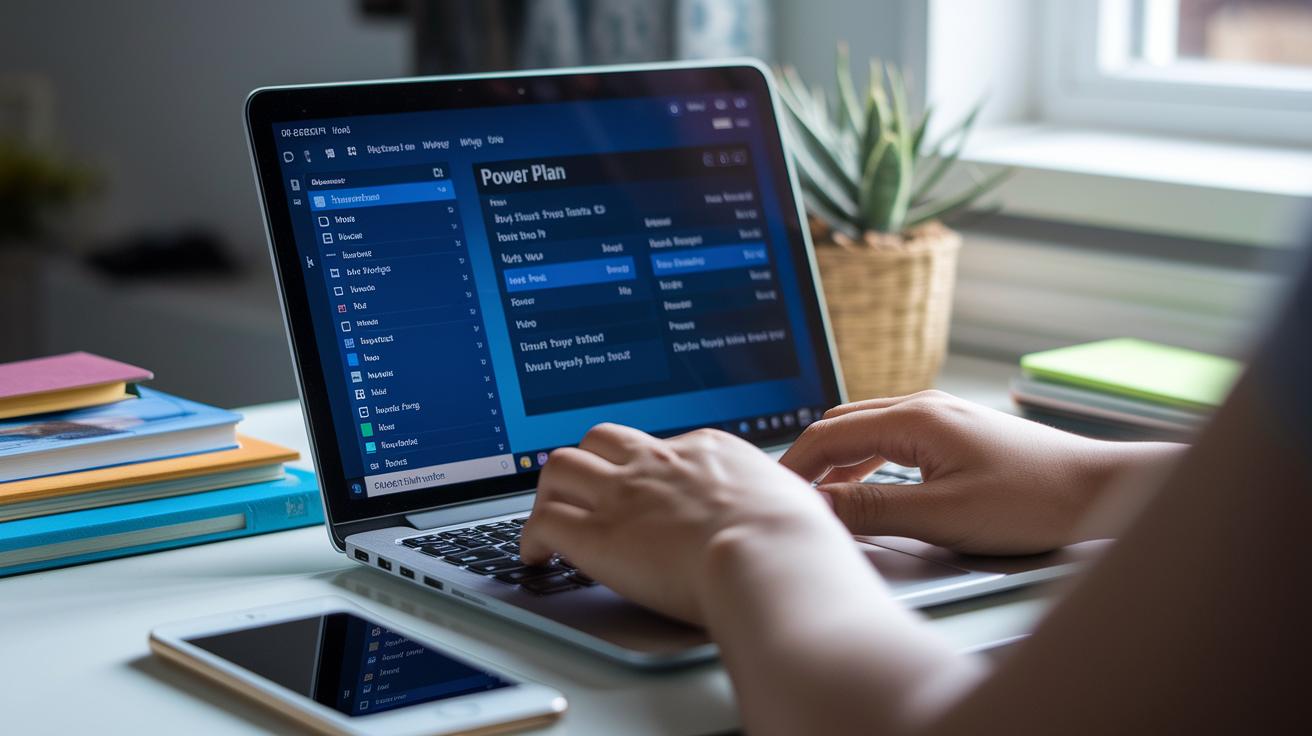
First, simplify your software work. Use Task Manager to close background apps that use up your CPU and memory. This frees up power for everyday tasks. You can also adjust Windows power plans. Switch between Balanced and High Performance to get a mix of speed and battery life. If your laptop feels slow, try ending non-essential apps to give it a boost.
Next, check your battery's health. Fully charge and then fully discharge your battery as advised by Windows help. This process helps keep your battery readings accurate and spreads energy evenly. If the battery seems weaker over time, you might need to replace old battery cells with an OEM pack, following the manual. Also, try running a lightweight memory test to spot any RAM issues that could be slowing you down.
Finally, put these steps together in a simple maintenance plan. Combining quick software fixes with regular battery checks not only fixes glitches but also boosts overall performance. Ending unnecessary programs and recalibrating your battery can extend your ultrabook's life while keeping it fast and reliable day after day.
Display and Input Repair Strategies for Ultrabook Laptops
Display Screen Troubleshooting
Begin by updating your graphics drivers from Intel, NVIDIA, or AMD. This simple step can fix problems like screen flicker, strange colors, or a black display. Next, inspect the display ribbon cables found under the keyboard bezel or hinge cover. Reseating these cables can clear up distortions or uneven lighting. If your screen colors are off or it doesn’t light evenly, this may be all you need.
If these steps do not work, you might need to replace the LCD panel or backlight assembly. This is a bigger fix for a screen that still shows issues after basic troubleshooting. Following these steps in order helps you decide if you can fix the display yourself or if you need professional help.
Keyboard and Trackpad Reconditioning
Start by carefully removing the keycaps with a spudger. This lets you check for debris or sticky substances under the keys. Clean the mechanisms with isopropyl alcohol to get the keys working smoothly again. Also, make sure the keyboard’s ribbon cable is securely in place, as a loose cable can cause input lag.
Next, reinstall the OEM touchpad driver package if your trackpad isn’t responding or the cursor jumps around. Testing the keys and checking the cables can resolve many input issues. This straightforward method ensures your ultrabook is ready for everyday use with improved keyboard and trackpad performance.
Network and Port Connectivity Repairs for Ultrabook Laptops
If your ultrabook struggles with wireless connections, open the Settings app and go to Network & Internet > Status. Choose Network reset to restore adapter defaults and clear errors. Then, download the latest Wi-Fi and Ethernet drivers from the manufacturer’s support page. This simple fix often stops signal dropouts and slow speeds. Checking your network settings regularly makes sure your ultrabook stays connected.
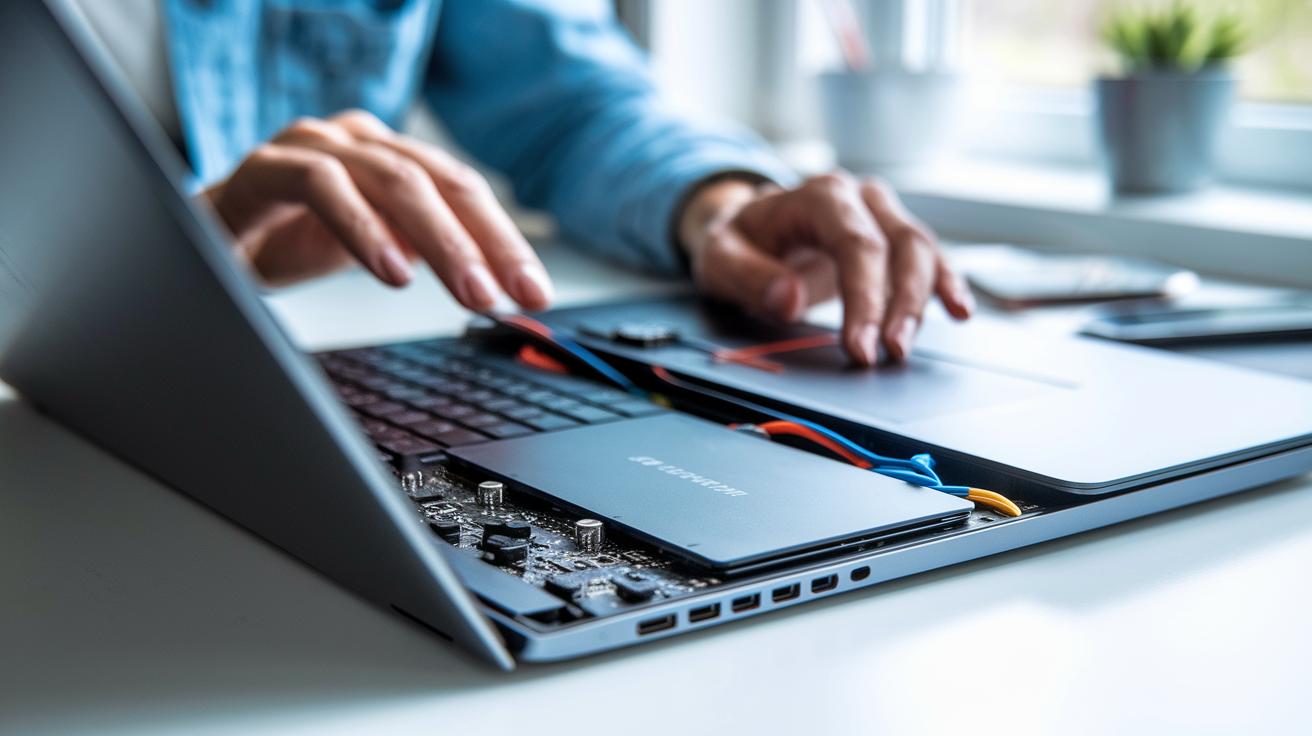
For issues with the wireless antenna, open the chassis carefully to reach the internal parts. Remove and reconnect the antenna leads on the M.2 card to fix loose connections. Once you reposition the leads, check your signal strength with a network tool or built-in diagnostic. This quick fix helps your ultrabook regain reliable wireless performance with little downtime.
For wired connections, start by inspecting all physical ports. Realign or replace worn USB and Thunderbolt ports by removing brackets and tightening fasteners. Before you put your device back together, test each port with a USB tester or by plugging in an external device. These steps help clear up common glitches and ensure stable data transfer and peripheral connections.
Preventive Maintenance and Quality Inspection Roadmap for Ultrabook Laptops
Keep your ultrabook running at its best with simple maintenance steps. Every 3–6 months, use compressed air to clear dust from the fan and vents. Once a year, reapply the CPU/GPU thermal paste to help with cooling. Run TRIM utilities (a tool that cleans up unused memory space) or do light defragmentation on your SSD to keep it fast. Also, check the OEM website for any BIOS or firmware updates to fix bugs and improve performance. These basic actions help spot problems before they get serious.
After repairs, run a few quick tests to make sure everything works as it should. Do a start-up speed check, press all the keys on the keyboard, run a display demo to test screen quality, and run a Wi-Fi speed test. These simple checks boost performance and give you peace of mind. For more tips on buying, check out the Ultrabook Laptop Buying Guide.
Final Words
In the action, we broke down key fixes, from diagnosing hardware faults to fine-tuning battery and performance tweaks. Each section offered a clear numbered roadmap for sleek notebook troubleshooting while covering essential tools and safety guidelines. We also shared tips on refreshing display and input systems, plus care for network and port connectivity. This ultrabook laptop repair guide for common problems gives you practical, step-by-step advice to get your device running smooth and strong. Enjoy the boost and get back to peak performance!
FAQ
Where can I find an Ultrabook laptop repair guide for common problems PDF that is free?
The ultrabook laptop repair guide offers a free PDF with clear, step-by-step instructions covering common issues like high CPU usage, overheating, and driver updates to quickly restore performance.
What is included in a list of laptop problems and solutions PDF?
The list PDF details common challenges such as overheating, network issues, and battery faults and provides easy repair steps like using Task Manager, cleaning vents, and updating drivers for improved functionality.
How does one troubleshoot laptop issues on Windows 11?
Troubleshooting Windows 11 involves using Task Manager to end resource-heavy processes, generating a battery report via PowerShell, resetting network settings, and updating drivers to resolve glitches and improve stability.
Is there a laptop repairing book or guide available for free online?
Free online laptop repair books cover essential topics including hardware fault diagnosis, performance tweaks, and essential tool usage while offering practical repair techniques backed by clear, numbered repair steps.
What solutions are provided for HP laptop problems and solutions?
The HP laptop repair guide offers targeted advice for issues like display flicker, overheating, and network dropouts, recommending practical steps such as updating graphics drivers and cleaning vents to restore proper operation.