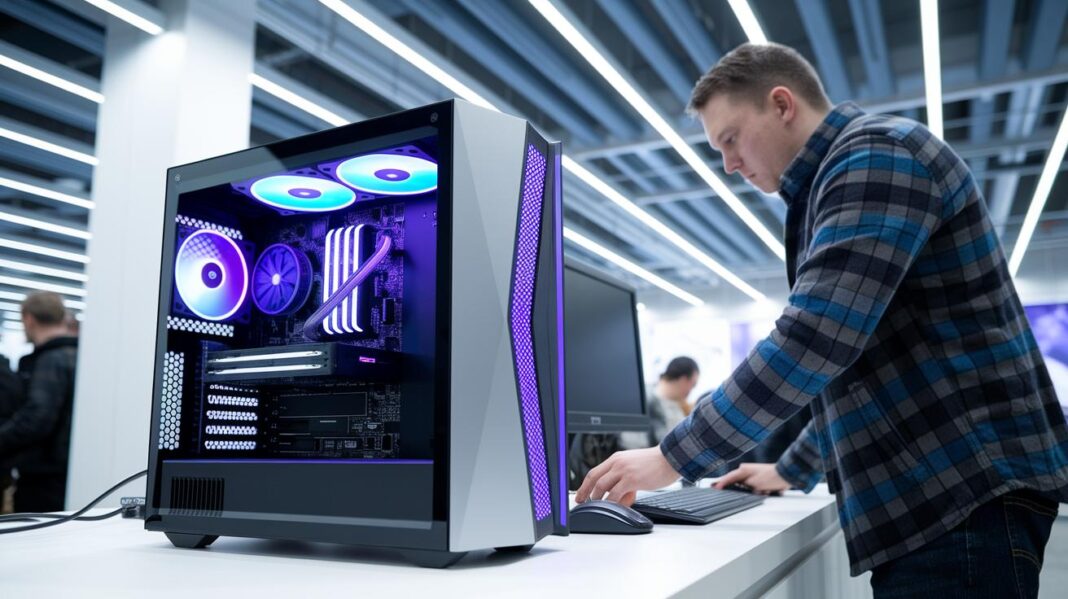
Have you ever wondered why so many desktop computers don’t live up to their promises? The secret to a great computer isn’t found in fancy specs but in careful planning. We focus on what really matters by breaking down 5 key factors: use case, budget, form factor, performance, and upgrade options. Follow this clear, step-by-step guide to avoid costly mistakes and choose a desktop that meets your needs today and tomorrow.
Essential Considerations in Your Desktop PC Buying Guide
A desktop PC buying guide is your essential tool for avoiding costly mistakes and saving time. It gives you a clear plan to check the key areas that impact performance and overall satisfaction. For example, a simple reminder like "Make sure your browser is updated" can improve your online research and shopping experience.
When choosing a desktop, think about these five points:
- Use case: Are you setting up for work, gaming, or everyday tasks?
- Budget: Decide how much you're willing to spend so you stay within your limits.
- Form factor: Pick a size that works for your space, whether it's a full-sized tower or a compact desktop.
- Performance: Focus on the CPU (processor speed) and GPU (graphics capability) to match what you'll do.
- Upgrade potential: Look for options that let you add more memory or parts in the future.
| Use Case | Budget | Form Factor | Performance | Upgrade Options |
|---|---|---|---|---|
| Daily multitasking | $800–$1200 | Mid-tower | Efficient CPU and moderate GPU | Extra memory slot available |
When you match these criteria to your specific needs, the process of choosing a desktop becomes simple and clear. This step-by-step approach turns a complex decision into manageable steps that are perfect for first-time buyers.
Desktop PC Buying Guide: Comparing System Types
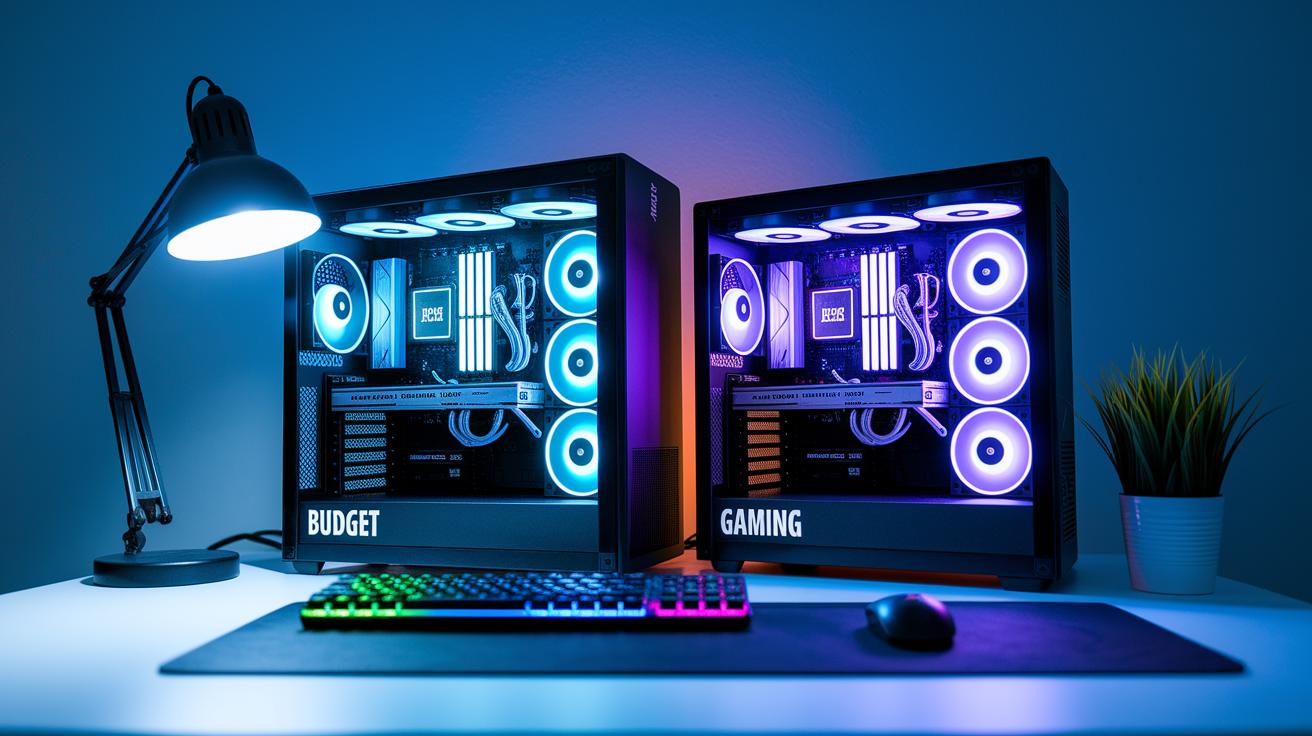
Every buyer has different needs, so desktop systems come in various shapes. Some are made for simple tasks on a tight budget, while others pack the power for gaming or professional work. Comparing these types side-by-side helps you choose a system that works for your daily tasks, play, and future upgrades.
Budget Desktops
Budget desktops give you basic performance that works well for everyday use. They typically use simple processors and integrated graphics (built-in video chips) and offer few upgrade options. Their low price makes them a solid choice for web browsing, office tasks, and light computing.
Gaming Rigs
Gaming rigs are built to handle fast, smooth gameplay. They use powerful processors and separate graphics cards to boost performance and deliver higher frame rates. They also come with strong cooling systems that keep the machine cool during long play sessions. These rigs are perfect if you want a system that keeps up with intense gaming.
All-in-One Systems
All-in-One systems combine the computer and its display into one neat package. This design saves space and keeps your desk clutter-free, making them ideal for small work areas. However, they usually have fewer options for upgrades compared to a traditional desktop tower.
Business Workstations
Business workstations are designed to be reliable and efficient. They often feature error-correcting code (ECC) memory, which helps protect your data, and come with excellent support from vendors. These systems are great for professionals who need consistent performance and strong stability throughout the workday.
Custom Builds
Custom builds let you choose every component to match your exact needs. This approach gives you the flexibility to pick your favorite brands and parts. It also makes upgrades easier later on. With a custom build, you can ensure that every piece of your system meets your performance goals.
Desktop PC Buying Guide: Smart Choices Ahead
Knowing your desktop PC's key components helps you avoid buying parts that don't work well together. When you understand each part's job, you can build a computer that fits everyday needs or handles heavy gaming.
For example, checking the types of CPU (central processing unit) and GPU (graphics processing unit) tells you if your system is best for simple tasks or advanced graphics work. This guide serves as a spec checklist that lets you compare different models and steer clear of systems that might fall short in performance.
| Component | Role | Budget Range | High-End Option |
|---|---|---|---|
| CPU | Processing | Entry-level to mid-range | High-core-count models |
| GPU | Graphics | Integrated to mid-range discrete | Top gaming/pro cards |
| RAM | Memory | 8–16 GB DDR4 | 32–64 GB DDR5 |
| Storage | Data | SATA SSD/HDD | NVMe PCIe 4.0 SSD |
| Motherboard | Connectivity | Basic chipset | Premium Z/Z690 |
| Power Supply | Power | 450–550 W Bronze | 750–850 W Gold/Platinum |
| Cooling | Thermals | Stock air cooler | AIO liquid cooler |
Use this checklist to review each component based on how you plan to use your PC. If you need a system that can handle graphics-heavy tasks, pick a strong GPU and effective cooling. Also, balance your choice of CPU and RAM within your budget to get the performance you need. This straightforward spec overview makes it easier for beginners and experienced users to compare different desktop models and buy with confidence.
Budget Desktop Recommendations in Your Desktop PC Buying Guide
For desktops under $500, you get basic models that handle everyday tasks like browsing the web and using office apps. These machines come with simple processors, small amounts of RAM, and built-in graphics that work well for light use.
If you spend between $500 and $1,000, you'll notice a boost in performance. These desktops have better processors, extra memory, and even basic dedicated graphics that let you enjoy casual games or stream videos without a hitch.
When your budget reaches $1,000 to $1,500, you can expect more powerful parts. These systems make multitasking easier, offer sharper visuals, and give you more storage choices perfect for a home office or creative projects.
If you plan to use demanding applications or want the option to upgrade in the future, spending a bit more can be a smart move. With a higher budget, you can secure a stronger CPU, a dedicated graphics card for improved visuals, and fast storage like NVMe drives. This extra investment means your desktop will keep up with your growing needs and handle tougher tasks with ease.
High-Performance Desktop PC and Gaming Rig Purchasing Tips
Benchmarks like fps counts and synthetic scores are vital for choosing a high-performance system. They show how a desktop handles real games and heavy tasks. For instance, one test might note, "This gaming rig hit 60 fps in the latest release," while another test highlights strong multi-threaded performance. These numbers help us see that performance claims stand up to real-world gaming and daily challenges.
When you compare choices, check the CPU clock rates, GPU fps results, RAM speeds, and SSD throughput. A higher CPU clock speed means the processor handles instructions faster. A GPU with higher fps keeps gameplay smooth. Faster RAM speeds help prevent lag when you switch between tasks. And a good SSD shows quick storage responses during boot-up or game level loading. Use these numbers to compare systems side-by-side or against online benchmarks for a clear picture of each rig's power.
Remember, peak performance needs balance with other factors like heat, noise, and power usage. A system that scores high may run hotter and louder, which might affect comfort during long sessions. Look for desktops that mix strong performance with efficient cooling and acceptable power use.
All-in-One Desktop PC Buying Advice and Compact Options
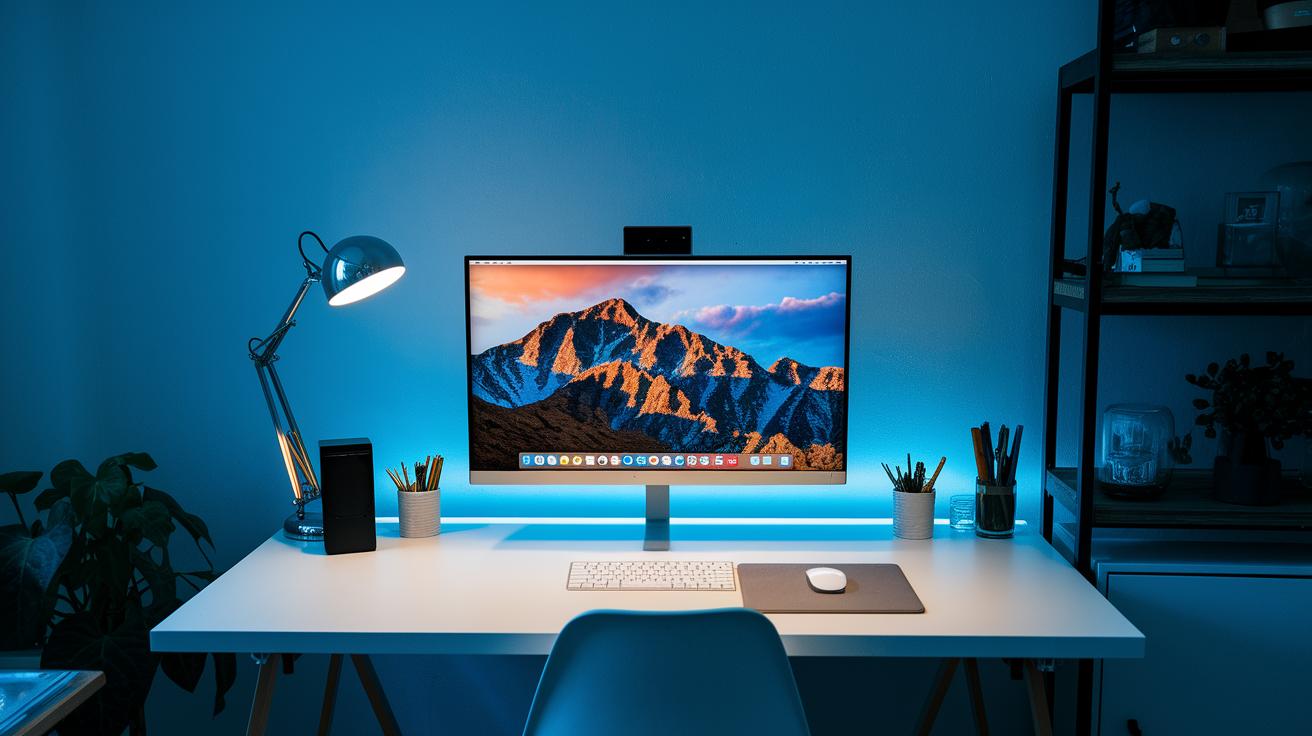
All-in-one systems keep your workspace tidy by merging the computer and display into one unit. They usually run quietly, but they use slower processors to avoid heat problems. One user said, "I love the clean setup but noticed lag during heavy tasks."
These systems give you a clean look at the cost of upgrade options. You usually cannot swap out memory or graphics parts easily. Repairs may take longer with the compact design, which can interrupt your daily work more than traditional desktops.
When choosing between an all-in-one PC and a mini-ITX tower, think about your space and performance needs. All-in-one desktops work great in home offices, dorm rooms, or living areas where a neat setup matters. Mini-ITX towers, however, let you upgrade parts later and handle tougher tasks if you want to boost performance over time.
Business Desktop PC Workstation Purchase Guide and Custom Build Advice
For professionals, choosing the right desktop is a key decision. You can opt for a standard consumer PC or go with a certified workstation. Certified models boost data safety and performance with features like error-correcting code (ECC) memory and professional graphics cards. These systems work best for projects that demand reliable, high-end performance.
ECC Memory & Reliability
ECC memory fixes tiny errors before they turn into system crashes or data loss. This feature is common in certified workstations. It keeps your system stable when you’re handling sensitive information. One technician even noted that ECC memory caught an error that might have interrupted a vital data analysis.
Professional GPU Options
Professional graphics cards, such as those in the NVIDIA Quadro series, come with special drivers designed for tasks like computer-aided design and video editing. Unlike gaming cards, these GPUs deliver consistent, precise rendering for demanding work. For example, a designer mentioned that their certified GPU managed complex 3D models without lag or glitches.
When planning a custom build, make sure you choose parts with solid vendor support, good cooling solutions, and reliable warranty terms. Pair a strong CPU with plenty of memory and fast storage. This combination will help your workstation meet the demands of even the most intensive professional tasks.
Step-by-Step Computer Purchase Plan in Your Desktop PC Buying Guide

Buying a desktop PC is easier when you have a clear plan. This guide breaks the process down into small, manageable steps that even first-time buyers can follow. With a simple plan in place, you can compare systems, track price changes, and find a PC that meets your needs and can be upgraded in the future.
- Define what you will use the computer for
- Set a realistic budget
- Shortlist a few desktop models
- Compare prices at different stores
- Check warranty and support details
- Make your purchase
These six steps keep your decision clear and reliable. They help you focus on important details like performance comparisons, monitoring discounts, and verifying support services. This method builds confidence in your choice and reduces risks.
Before finalizing your purchase, use online tools that track prices and alert you about deals. Reading reviews and checking return policies across several sites gives you solid insight into warranty and support options. Always verify the details with trusted price alerts to stay updated on market changes.
Final Words
In the action, we broke down key factors for choosing a desktop, from knowing your intended use and budget to comparing major system types. We covered components, cost-effective recommendations, high-performance tips, and even all-in-one and business options. A clear step-by-step purchase plan rounds out this desktop pc buying guide. This guide aims to simplify decision-making, showing real-world trade-offs for quick and confident buying. Enjoy the process of matching your needs with the right desktop option and feel ready to pick your next computer with ease.
FAQ
Q: What does a gaming desktop PC buying guide cover?
A: The gaming desktop PC buying guide explains key factors like graphics card performance, fast processors, efficient cooling, and cost concerns to help you choose a system that handles modern, immersive games.
Q: What are the top 10 desktop computers?
A: The top 10 desktop computers list highlights models that balance speed, value, and reliability. It includes gaming, business, and home-use desktops chosen for their solid performance and overall user satisfaction.
Q: What are the new rules for buying a computer?
A: The new rules for buying a computer emphasize evaluating current component standards, compatibility with upcoming software updates, and checking independent reviews to ensure long-term performance and reliability.
Q: What are the best desktop computers for the money?
A: The best desktop computers for the money offer a mix of solid performance, quality components, and competitive pricing. They strike a balance between up-to-date features and budget-friendly options for everyday use.
Q: What do Consumer Reports say about the best desktop computers?
A: Consumer Reports favors desktops that combine consistent performance, lasting durability, and value for money. Their recommendations are based on rigorous testing and customer feedback for reliable everyday use.
Q: What is the best desktop computer for working from home?
A: The best desktop computer for working from home delivers fast performance, quiet operation, and dependable connectivity, ensuring smooth video calls, productivity tasks, and an overall comfortable work setup.
Q: What should you look for when buying a PC for gaming?
A: Buying a PC for gaming means checking for a powerful graphics card, a high-speed processor, ample memory, and effective cooling. These features ensure smooth gameplay even during intense, graphics-heavy sessions.
Q: What does a laptop computer buying guide include?
A: A laptop computer buying guide outlines factors like portability, battery life, screen quality, and weight. It helps you compare options for users who prioritize mobility and everyday performance on the go.
Q: How does the Acer Aspire TC-1775 Desktop Computer compare?
A: The Acer Aspire TC-1775 Desktop Computer offers reliable everyday performance at a friendly price. It is designed for general home or office use, balancing performance with affordability without overcomplicating features.
Q: What are the features of the ASUS V500 Mini Tower 15L Desktop?
A: The ASUS V500 Mini Tower 15L Desktop features an Intel Core i7 processor paired with a compact design. It delivers strong performance while saving space, making it ideal for users looking for a powerful yet small desktop.
Q: How does the GEEKOM A6 Mini PC stand out?
A: The GEEKOM A6 Mini PC stands out with its AMD Ryzen 7 processor, 32GB of RAM, and a 1TB SSD. It packs impressive power into a small form factor, perfect for users needing a compact yet capable desktop.
Q: What makes the Lenovo Yoga AIO 27″ appealing?
A: The Lenovo Yoga AIO 27″ is appealing because it merges a large, clear 27-inch display with strong processing ability in a sleek all-in-one design, making it suitable for both home productivity and multimedia use.
Q: What are the key benefits of Mac Studio in desktop computing?
A: Mac Studio offers a compact, high-performance solution packed with powerful processors and robust graphics, making it ideal for creative professionals who need a reliable system for demanding tasks.
Q: What should you know about the Dell Dws Precision 3680 series?
A: The Dell Dws Precision 3680 series is known for its high-end performance, extensive storage options, and reliability. It is well-suited for intensive workloads like creative projects and professional applications.