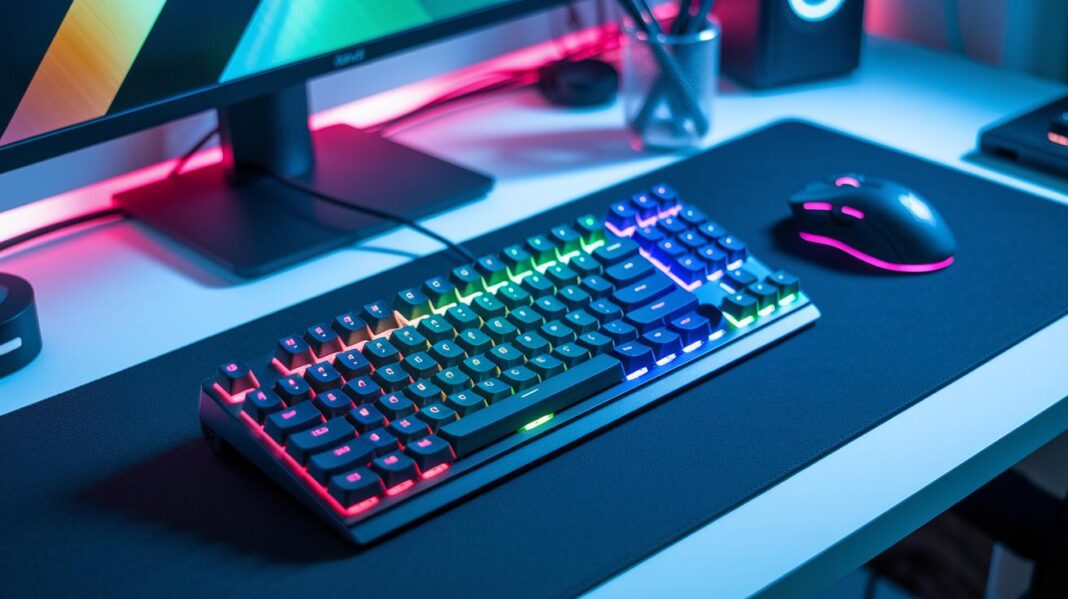
Ever thought that dust might be holding you back? Even a tiny speck on your mouse sensor can slow your reflexes when it counts. A little cleaning can boost the performance and life of your gaming gear. In this guide, we share easy tips to keep your keyboards, mice, and controllers in top shape. Follow these simple steps to avoid costly repairs and enjoy smooth, uninterrupted gameplay.
Core Gaming Accessories Maintenance Tips for Long-Lasting Performance
Keeping your gaming gear in top shape starts with regular care. Even a bit of dust on a mouse sensor or some crumbs on a keyboard switch can slow you down in key moments. Checking your equipment every month helps catch minor issues before they become big problems.
Simple cleaning and quick fixes not only keep your gear performing well but also extend its life. By handling little glitches like sticky keys or tracking errors early, you avoid costly repairs later. Routine inspections are a smart way to get the most out of your equipment.
- Compressed-air for dust removal
- Surface wipes with isopropyl alcohol
- Cable and connector checks
- Timely firmware updates
- Proper storage practices
Following these steps improves overall performance and saves money over time. Regular upkeep keeps your gear ready for intense play and reduces unexpected downtime, making it a great investment for any serious gamer.
Keyboard Maintenance Tips: Step-by-Step Cleaning Guide for Gaming Keyboards
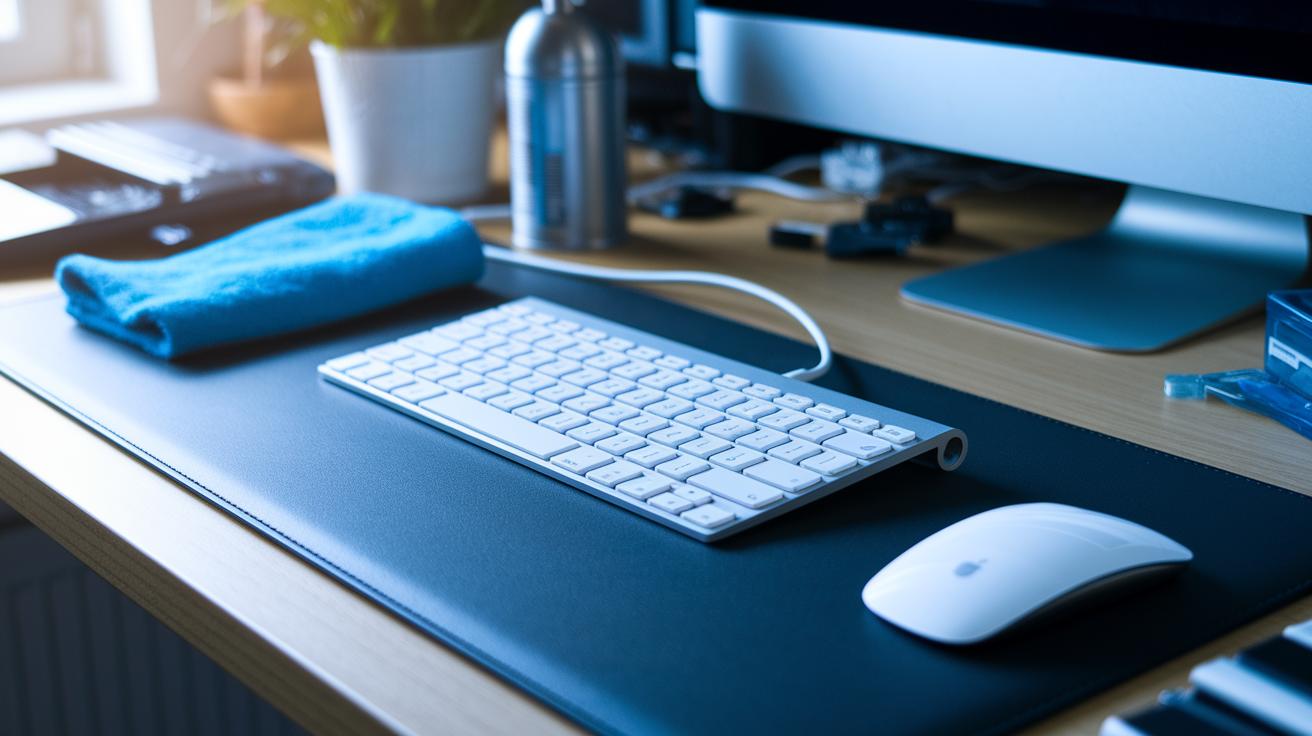
Before you start cleaning, make sure your keyboard is safe to work on. Unplug it first to avoid any electrical issues during cleaning.
Preparation
Unplug your keyboard and gather your tools: compressed air, isopropyl alcohol, and a microfiber cloth. Set up a neat work area where you can remove parts if needed. This keeps small keycaps and debris from getting lost.
Debris Removal
Gently tap your keyboard on a flat surface to shake off loose debris. You can also remove a few keycaps to reach dust and crumbs hiding underneath. Then, use compressed air between the keys to blow away any particles. Think of it as giving your keyboard a quick, refreshing shake.
Surface and Key Cleaning
Lightly dampen your microfiber cloth with isopropyl alcohol and wipe down the keys and the keyboard frame. Make sure the cloth is just a bit moist so that no liquid drips into the electronics. This step helps remove oils and fingerprints from everyday use.
Stabilizer and Switch Care
For a better key feel, put a tiny bit of stabilizer grease on larger keys like the Spacebar, Enter, and Shift. If you have a hot-swappable keyboard, you can replace any faulty switches yourself. If the switches are soldered, consider getting professional help. Finally, check that every key is responsive and clean so you can enjoy a smooth gaming experience.
Mouse Maintenance Tips: Sensor Cleaning and Switch Care for Gaming Mice
Keeping your gaming mouse clean is important to make sure it works well. Even a small bit of dust on the sensor can cause tracking issues and affect your gameplay. Use compressed air with a dry cotton swab to gently clean the sensor. This method avoids any liquid damage. Listen for unusual sounds. If the clicks feel soft or inconsistent, check the micro-switches for signs of wear. Also, take a look around the joystick area since debris can cause drift or other problems.
Once you've cleared away any debris, recalibrate your joystick using your system's built-in tools for smooth and accurate input. Try a quick click test with a dry cloth to catch any double-click or reversal issues early. Cleaning your mouse on a regular basis helps it last longer and improves your gaming performance.
| Task | Method & Tools |
|---|---|
| Sensor Cleaning | Compressed air + cotton swab |
| Switch Inspection | Dry cloth + click-test |
| Joystick Calibration | In-OS recalibration utility |
Treat your mouse with care and do regular checks. This simple routine keeps it responsive and extends its lifetime.
Headset Maintenance Tips: Sanitization and Cable Care for Gaming Headsets
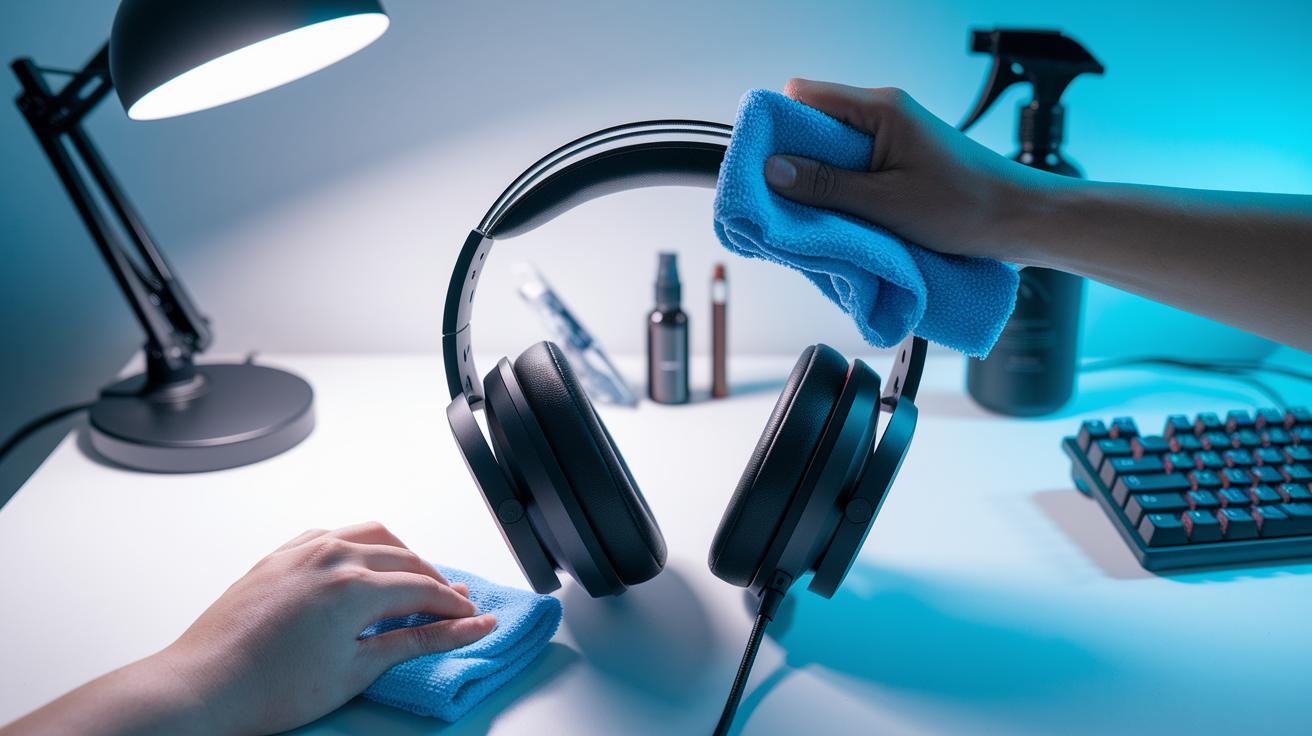
Keep your gaming headset in top condition by caring for both its electronic parts and fabric areas. First, gently wipe the headband and ear pads with a soft cloth lightly dampened with mild soapy water or an electronics-safe cleaner. This method helps remove oils and dirt without damaging plastic, synthetic leather, or genuine leather. At the same time, treat the cables kindly, avoid sharp pulls, tight bends, and excessive twisting. It’s a good idea to check the jack ends and USB connectors often for any early signs of wear. You can also use compressed air on the earcup meshes to blow away dust while keeping moisture out, which is key for clear audio and overall performance.
- Avoid sharp pulls, tight bends, and twisting when handling cables.
- Clean the headband and ear pads with a soft, lightly dampened cloth or a cleaner made for electronics.
- Use cloths only lightly dampened to keep water away from electronic parts.
- Regularly inspect connectors for any damage to prevent sudden disconnections.
- Use compressed air on earcup meshes to remove dust without introducing moisture.
- Make sure every part dries completely to avoid any dampness.
Once your headset is clean and dry, store it in a cool, dry spot. Use a case or pouch if you have one to prevent cable tangles, dust, and accidental bumps. This simple care routine helps keep your headset performing its best for longer.
Controller Maintenance Tips: Thumbstick Repair and Button Checkups
Button Cleaning
Dust and debris can make your controller buttons sticky or unresponsive. Start by dampening a Q-tip with isopropyl alcohol. Gently clean around the edge of each button. Be careful not to let too much liquid seep inside. Test the buttons regularly to catch any issues early. This simple process helps keep your controller feeling smooth and responsive.
Thumbstick Maintenance
Over time, thumbsticks can start to drift from wear and tear. Use a can of compressed air to blow away any particles around the base of each thumbstick. Then, recalibrate the movement using your console or PC settings. This quick check keeps the thumbsticks precise, which is key during fast-paced gaming.
Exterior Inspection
Take a moment to look over your controller's outer casing. Check the plastic housing, port connectors, and cable strain relief for any signs of damage like cracks or fraying. Catching these issues early can help you avoid bigger problems later. For more serious concerns, it might be best to get a professional repair or replacement.
Mousepad Maintenance Tips: Cleaning Regimen for Gaming Surfaces
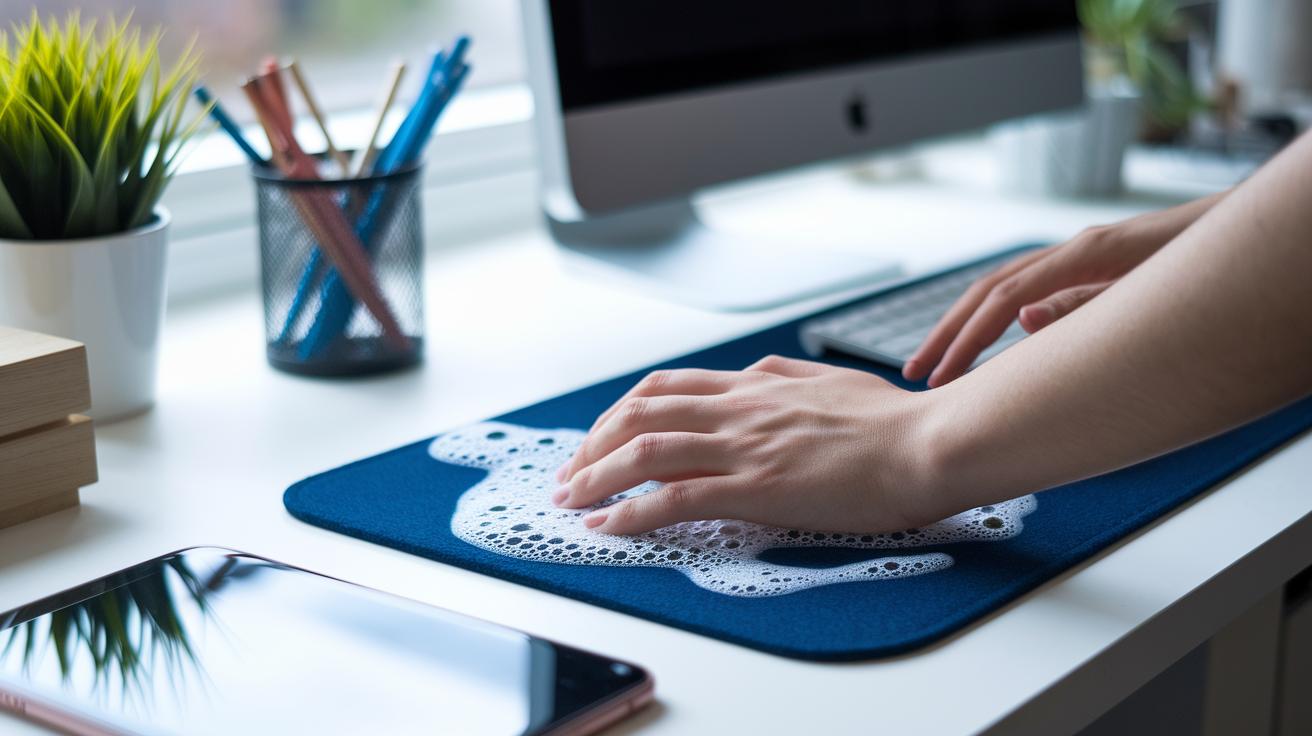
A clean mousepad helps you play your best. Dust and oils can slow down your sensor tracking, so regular cleaning is key for a smooth experience.
For fabric mousepads, hand wash in lukewarm water (below 30°C) with a bit of mild soap. You can also use a washing machine on a gentle cycle. After washing, lay the pad flat to air dry. Do not use a tumble dryer or any heat source since that can cause damage.
Rubber and plastic mousepads are simpler to clean. Wipe them down with soapy water, give them a good rinse, and let them dry completely. For glass mousepads, spray a window cleaner and wipe gently with a lint-free microfiber cloth. If your mousepad has RGB lighting with USB connectors, keep water clear of the electronic parts.
We suggest cleaning your mousepad at least once a month. Always let it air dry fully before you use it again. This easy routine keeps your tracking sharp and extends the life of your gaming accessory.
Storage and Cable Management Tips for Gaming Accessories
Using dedicated cases with built-in compartments is a smart way to protect your gaming gear. Hard shell or EVA cases keep controllers, headsets, and cables safe from shocks and dust. Storing discs and game cartridges vertically can also help prevent warping and scratches. Check your cases often to make sure they are still in good shape.
Keeping your accessories in a cool, dry spot away from direct sunlight is key. This avoids high heat and humidity, which can damage internal parts and warp plastics. A quick check for dust buildup can stop small issues from turning into costly repairs.
For cable management, try routing your cables through clips, sleeves, or Velcro straps. Regularly inspect the insulation and connectors to keep them from wearing out.
Firmware Updates and Troubleshooting Tips for Gaming Accessories
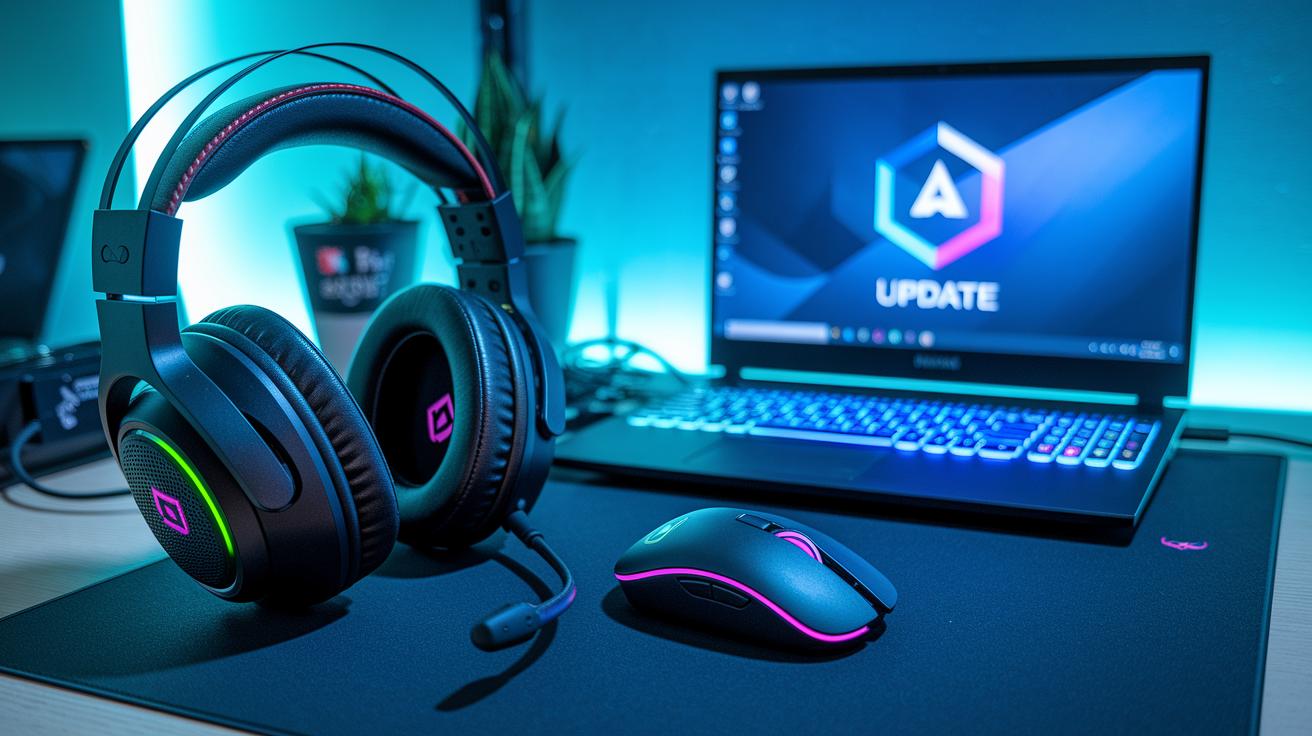
Keeping your gaming accessories updated is key for smooth performance. Regular firmware and driver updates fix bugs and help your devices work well with your system.
Firmware Refresh Procedures
Check your device settings once a month using the official app or system menu. Look for firmware or driver updates and install them. If needed, reset the device settings and run the calibration tools again. This habit cuts down on tracking errors and keeps your gear in sync.
Common Glitch Resolution
If you notice issues like sensor drift, double-click problems, or lost connections, take a look at the latest patch notes. Reset your device settings and run calibration tools to clear glitches. This quick step can often get your gear back to peak performance during your gaming sessions.
Battery & Connection Troubleshooting
For wireless accessories, keep the battery between 20% and 80% for best health. Use a USB extension to place dongles closer to your devices and away from interference. Also, regularly check cables and connectors to avoid unexpected drops in connection.
Consider setting a monthly reminder or activating software alerts for updates and troubleshooting. This routine not only extends the life of your devices but also helps prevent longer repair or replacement costs over time.
Final Words
In the action, this article showcased core cleaning and upkeep strategies for gaming gear. We covered basic tactics for keyboards, mice, headsets, controllers, mousepads, and cable management. Routine checks and firmware updates help prevent issues before they affect performance.
Regular maintenance can stop minor dust or debris from turning into a bigger problem. Follow these gaming accessories maintenance tips to keep your gear working smoothly and save both time and money. Stay proactive and enjoy a refreshed gaming experience.
FAQ
Q: What are some gaming accessories maintenance tips for 2021?
A: The gaming accessories maintenance tips for 2021 focus on regular cleaning, dust removal, cable inspections, firmware updates, and proper storage practices. These steps keep performance steady and extend device life.
Q: How can I find gaming PC maintenance near me?
A: The phrase “gaming PC maintenance near me” suggests searching for local repair shops or service centers that specialize in gaming rigs. Look for reviews and recommendations to find reliable support.
Q: How do I clean my computer to improve performance?
A: Cleaning your computer includes dusting hardware, updating software, deleting unwanted files, and defragmenting storage. This overall cleanup boosts speed and ensures smoother operation.
Q: How can a gaming PC cleaner help maintain my system and should I use a vacuum for cleaning?
A: A gaming PC cleaner uses compressed air and gentle tools to remove dust without harming sensitive components. Using a vacuum may cause static electricity damage, so it should be avoided.
Q: How can I protect my gaming accessories from damage?
A: Protecting your gaming accessories involves regular cleaning, proper storage, careful cable management, and avoiding extreme conditions. These practices help maintain optimal performance and durability.
Q: What are the 10 essential computer maintenance tips?
A: The 10 essential maintenance tips include dust removal, regular software updates, file cleanup, antivirus scans, cable inspections, proper storage, and other routine system checks to keep the computer running smoothly.
Q: Is $1000 enough for a gaming PC?
A: A $1000 budget can build a capable gaming PC for moderate settings, but performance varies with component choices. Compare specs and reviews to ensure you get the best value for your needs.
Q: What should every gaming setup have?
A: Every gaming setup should include a reliable gaming rig, a quality display, responsive peripherals, sturdy accessories, and comfortable seating. These components combine to deliver a balanced and immersive gaming experience.


cyclosporine for cats
cyclosporine for cats
xenical insurance coverage
xenical insurance coverage
doxycycline and alcohol use
doxycycline and alcohol use
how to prescribe acyclovir ointment
how to prescribe acyclovir ointment
ketoconazole cream antifungal treatment
ketoconazole cream antifungal treatment
toradol short term use key facts
toradol short term use key facts
ED drug food‑related onset changes
ED drug food‑related onset changes
vardenafil 10 mg tablet analysis
vardenafil 10 mg tablet analysis
orlistat do not take
orlistat do not take
otitis media medical facts
otitis media medical facts
Compare Sildenafil and Avanafil
Compare Sildenafil and Avanafil
Sildenafil vs Cialis Onset Clinical Overview
Sildenafil vs Cialis Onset Clinical Overview
TadalafilCentral reference
TadalafilCentral reference