Ever wondered if your ultrabook really keeps your data safe? In today's fast world, security is not a bonus, it is a must. Ultrabooks include smart tools that protect you. They use TPM chips (tiny modules that store keys securely) to keep your codes safe. UEFI Secure Boot stops unapproved programs from starting. Full disk encryption wraps your files in a protective shield.
The ultrabook also comes with fingerprint sensors and facial recognition. These features let you unlock your device fast while keeping strangers locked out. This post lays out how these security tools work and offers tips on using them best. Your device can shine by truly protecting your data.
Ultrabook Laptop Security Features: Built-in Technologies Overview
Modern ultrabooks have built-in safeguards that protect your data from the moment you power on your device. Many models come with TPM 2.0 (a chip that securely stores encryption keys and meets TCG standards), ensuring that sensitive information stays safe even if the laptop is stolen.
Another key feature is UEFI Secure Boot. This function checks that the operating system loader is signed during startup to block rootkits and unauthorized firmware. Many business models add a pre-boot PIN, asking for a code before the OS starts, which gives you extra peace of mind.
Full disk encryption is also a vital part of these laptops. Using Windows BitLocker or macOS FileVault, your ultrabook protects stored data with AES-256 encryption. Tests show that this added security impacts SSD performance by less than 5%, thanks to the CPU-integrated AES engines that handle tasks in real time.
Together, these technologies build a strong defense. TPM chips keep your encryption keys safe, secure boot makes sure that only trusted software runs, and full disk encryption guards your data even if the device is lost. The added pre-boot PIN makes ultrabooks a smart choice for anyone looking for solid, built-in protection against both physical and cyber threats.
Biometric Authentication and Access Controls for Ultrabook Laptops
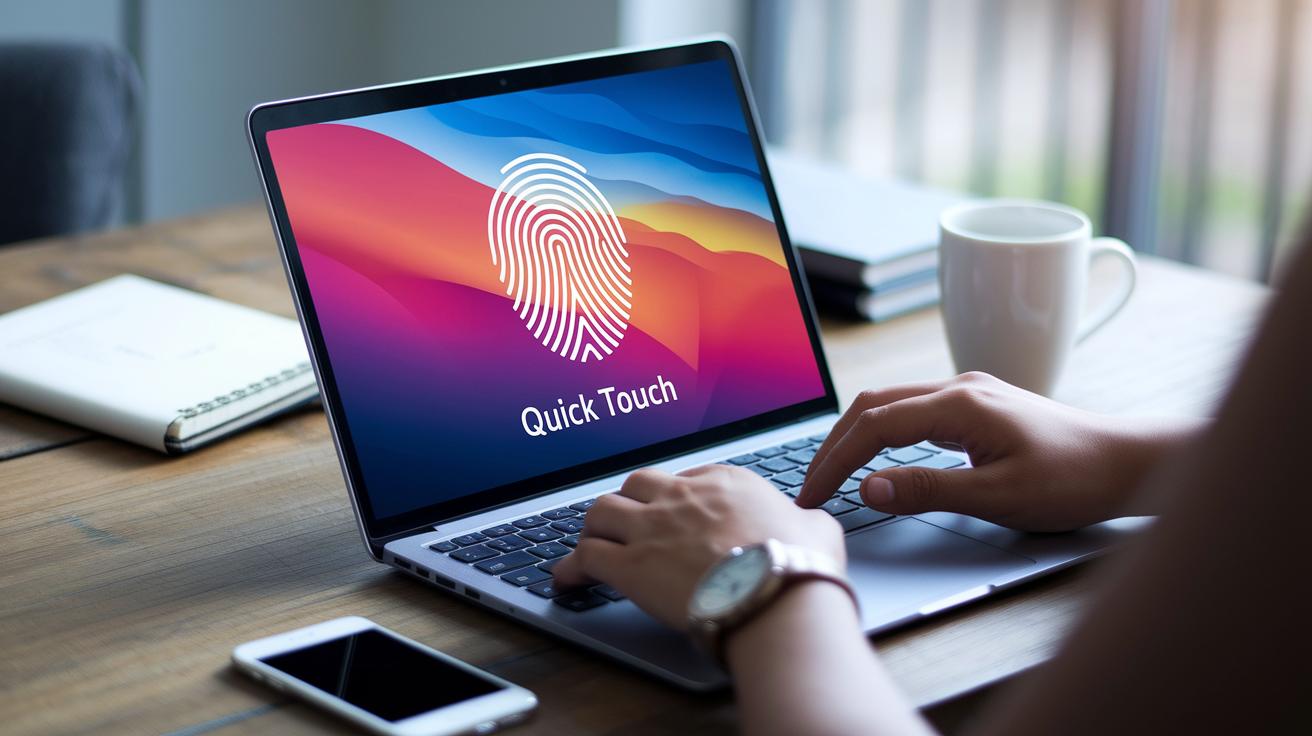
Ultrabooks now feature fingerprint sensors that cut unauthorized access by up to 60%. With just a touch, you can log in and secure your device, much faster than typing a password. It only takes a quick scan to keep out unwanted access. We suggest calibrating the sensor every 3 to 6 months for best results.
IR facial recognition, such as Windows Hello, can verify your face in less than 0.5 seconds even in low light. It checks your identity as you glance at the laptop without slowing you down or risking your credentials. When paired with a PIN or a hardware token, this multi-layer check lowers breach risks by over 70%.
It is wise to have strong password policies as a backup when biometrics fail. A password with at least 12 characters that mixes upper and lower case letters and symbols adds an extra layer of safety. For example, think of a password like "S3cur3L@pt0p!" which is hard for others to guess, yet easy for you to recall.
Using multi-factor setups that combine biometrics with PINs or tokens means a double-check on your identity. Even if one method is bypassed, your ultrabook stays protected against unauthorized access. This layered approach is a practical way to keep your data and device safe every day.
Firmware and OS Hardening for Ultrabook Laptops
Protecting your ultrabook starts with taking care of its firmware and operating system. UEFI Secure Boot checks each step from power-up to the operating system and blocks any bootloaders that are not signed. This helps keep unwanted software away. By locking down the boot process and setting strong BIOS/UEFI passwords, you stop strangers from changing your system settings. Many vendors now offer firmware patches within 30 days of a security flaw report. This means that with automatic updates turned on, your ultrabook stays safer. Also, hardening the operating system by turning off services you don't use, limiting admin rights, and applying weekly updates for Windows or macOS greatly reduces risks and keeps your device sound.
BIOS and UEFI Configuration
When you set up your ultrabook’s BIOS and UEFI, choose a strong password that is hard to guess. Lock the boot options so only trusted devices can start up your system and always keep UEFI Secure Boot turned on. For example, you might set a password like "Secur3Set!" to remind you to use a code that is both strong and memorable. Check the Secure Boot status often to make sure nothing has changed. These simple settings act as your first line of defense against tampering.
Patch Management Best Practices
Keep a regular schedule to update your firmware and operating system. This helps fix new security issues quickly. To be safe, test new updates on a second ultrabook first to see if they work well. If a new patch causes problems, you might need to roll back to an earlier, stable version. Following these practices helps protect your ultrabook from both physical tampering and software threats while keeping your data secure.
Data Protection and Backup Strategies for Ultrabook Laptops
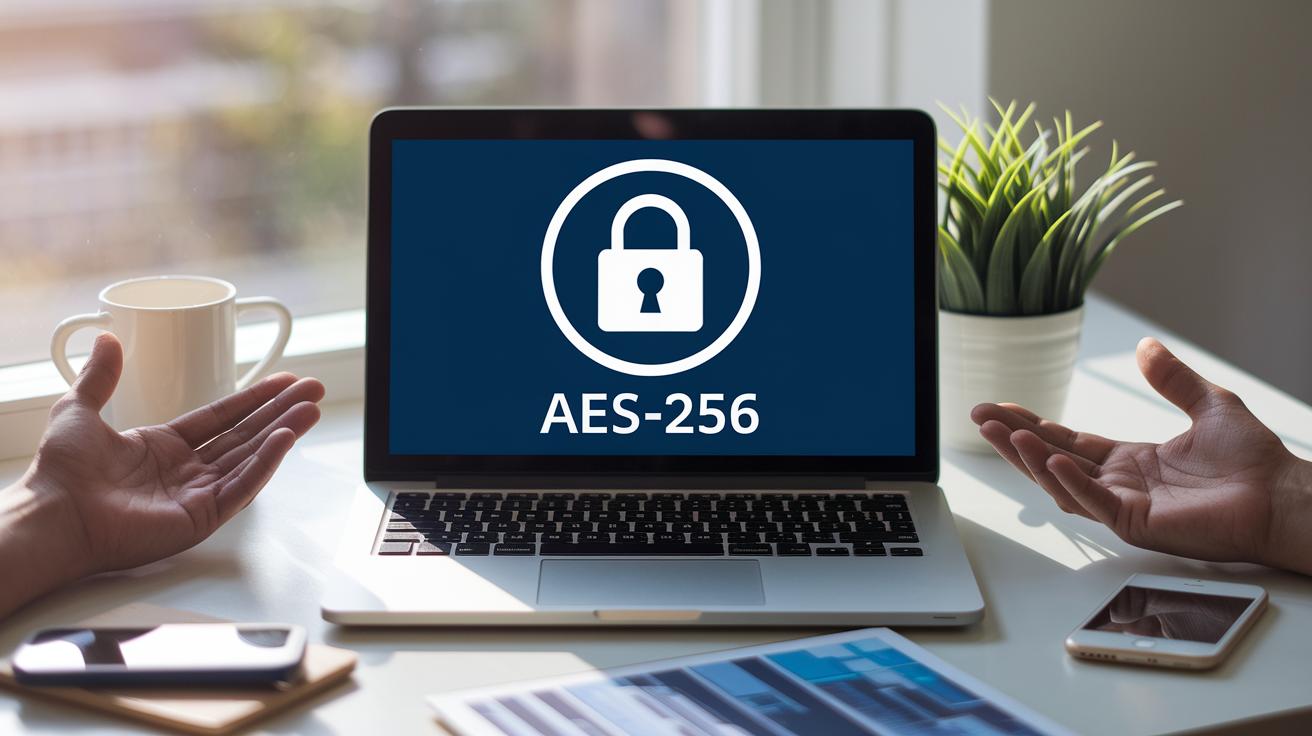
Start by enabling full-disk encryption when you first set up your laptop. Tools like BitLocker (for Windows) or FileVault (for macOS) use strong AES-256 encryption to lock your files, even if the laptop is lost. Set up both local and cloud backups to keep extra copies of your important data. Also, change your encryption keys every 90 days to lower the risk of compromised keys.
Test your backup and restore process every three months to make sure everything works as it should. A weekly full image backup saved on an external drive combined with an AES-256 cloud sync gives you both security and ease of use. This process keeps your backups safe while your sensitive files remain encrypted during transfer and storage.
- Weekly full image backup on an external drive
- Daily incremental backup using cloud sync
- Monthly encrypted backup stored offsite
- Quarterly test to restore backups
- Rotate encryption keys every 90 days
Following these simple steps helps your ultrabook stay safe from data loss. You build a strong safety net that protects your digital life and keeps encryption active in your overall security plan.
Network Defenses and Safe Connectivity for Ultrabook Laptops
Your ultrabook’s online safety starts with a solid virtual private network (VPN). Only 56% of public Wi-Fi hotspots use WPA2 or WPA3 to protect your data. This makes it important to route your information through an AES-256 VPN tunnel. For example, when you're at a café, a secure VPN keeps your private details hidden.
Run a monthly scan of your wireless network to spot rogue access points, open ports, or weak encryption. This routine check shows you risks early and lets you fix them right away. A quick scan on a public hotspot might reveal an open port, which is a clear sign to avoid that network.
Tighten your browser settings to boost your defenses. Disable autofill so your data isn’t accidentally shared, enforce HTTPS (a secure website connection) using HSTS, and use sandboxed tabs with content blockers. When you access an online banking site, these settings help keep your session safe.
Use email filters and check link previews to cut down on phishing attacks. Combining these tech steps with regular user training cuts phishing success rates by over 80%. This way, your ultrabook stays strong and secure, no matter where you connect.
Physical Safeguards and Anti-Theft Solutions for Ultrabook Laptops
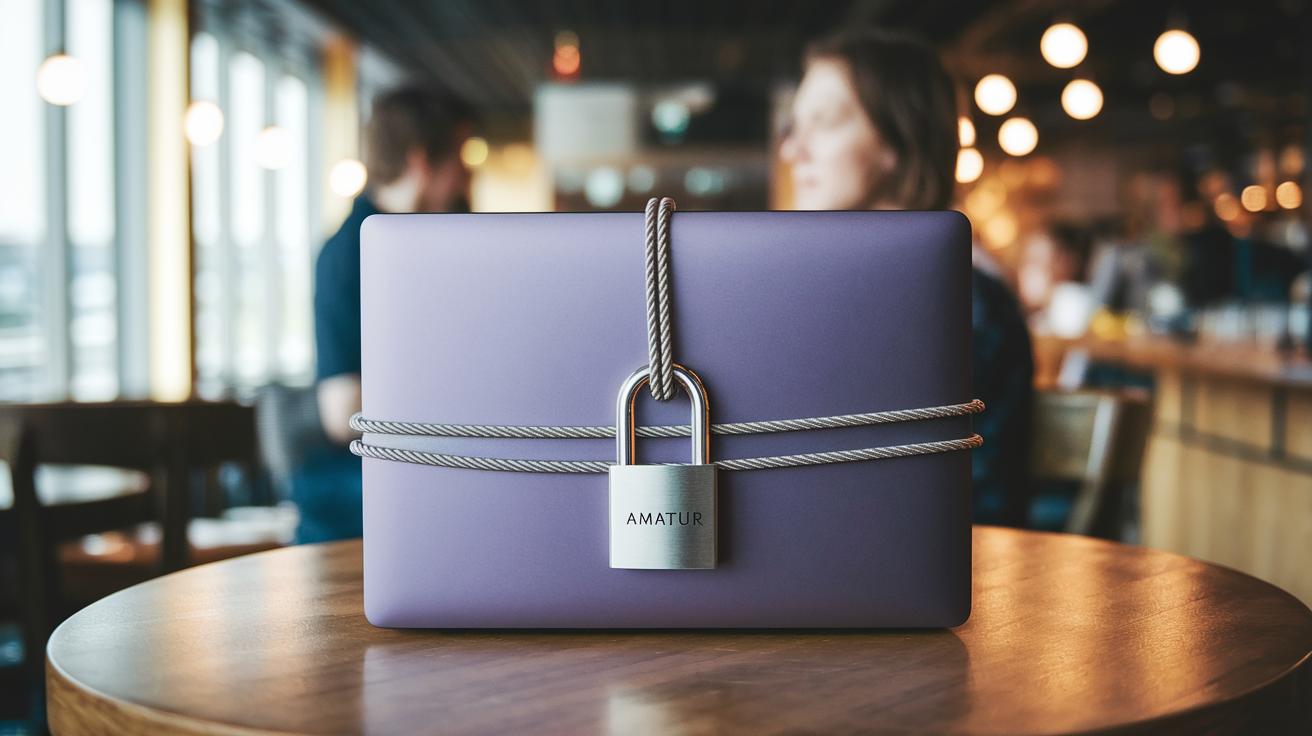
Use a steel cable lock, especially one with a Kensington slot, to secure your ultrabook. This simple tool ties your laptop to a fixed object and stops casual theft in public spots like cafes or offices.
Built-in tracking features, such as Windows Find My Device or Apple Find My, let you find your laptop within about 100 meters. This quick location check can really help if you lose your device while on the move.
Remote wipe is another neat trick. With a cloud or mobile management tool, you can erase your data after repeated failed logins or a theft report. This makes sure your sensitive information stays safe even if someone gets hold of your ultrabook.
Some laptops also offer hardware tamper alerts. If someone tries to open your device’s case, you'll get an instant notice or even see the device lock itself. This extra step helps stop silent breaches and keeps your device secure.
Final Words
In the action, we covered how modern ultrabooks lock down security with chip-based storage, secure boot, and hardware encryption.
We also explored how biometric and password setups block unauthorized access and how firmware tweaks keep your device safe.
We walked through data backup and protection methods, safe web practices, and simple physical safeguards.
These ultrabook laptop security features and best practices give you a strong layer of defense against threats.
Stay confident knowing your device is equipped with practical, built-in protections for daily work and beyond.
FAQ
How do I protect your laptop from physical damage, scratches, and theft?
Protect your laptop from physical damage by using a durable padded case and safety cover. Employ a cable lock and proper handling to guard against scratches and theft.
What application policy recommendations and safety precautions should you follow for your laptop?
Application policies advise installing trusted software, keeping updates current, and adjusting settings for enhanced security. Follow safety precautions like using secure passwords and monitoring device access.
How do you protect your laptop from viruses and hackers?
Protect your laptop from viruses and hackers by using reliable antivirus software, enabling a firewall, and applying multi-factor authentication. Keep all software updated to block malicious attacks.
What are the 5 P’s of security and the 4 levels of security features?
The 5 P’s of security cover core principles like protection and prevention, while the 4 levels refer to device, network, application, and data safeguards that work together for solid defense.
What is the 90 10 rule in computer security and what security should you have on your laptop?
The 90 10 rule means 90% of fears stem from user mistakes while 10% come from system flaws. Your laptop should include full-disk encryption, secure boot, and strong authentication measures.