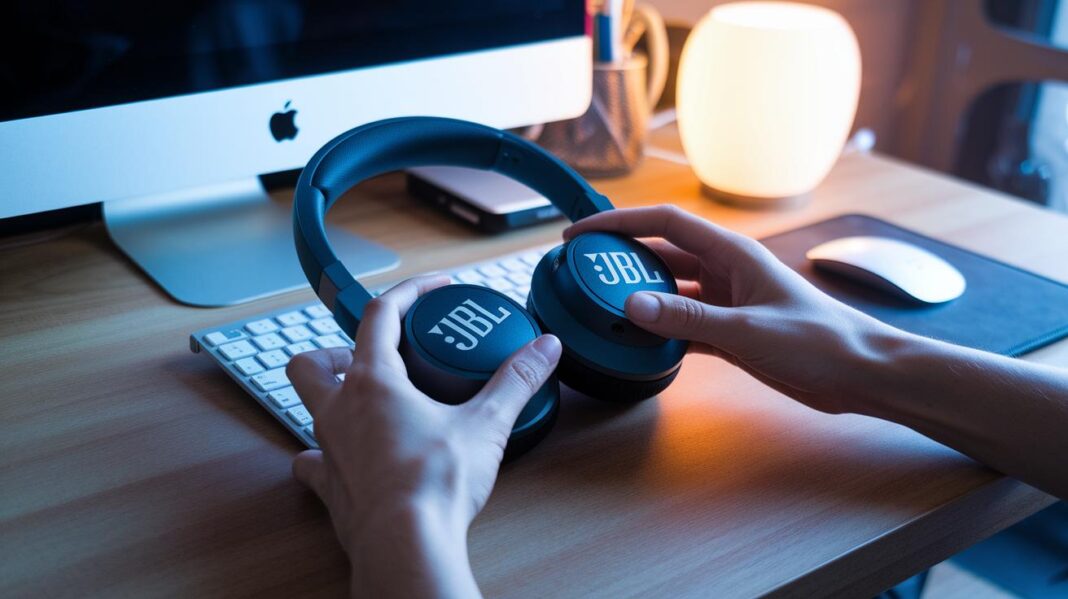
Have you ever had trouble connecting your headphones? Pairing JBL headphones is easier than you might think. In just a few quick steps, you'll be enjoying crisp, clear sound wherever you go. Whether you are using over-ear headphones or earbuds, the setup is almost the same, making it feel like following a familiar recipe. Follow this simple guide and you'll be listening to your favorite tunes in no time.
Simple Step-by-Step Guide to Pair JBL Headphones
Every JBL headphone uses the same easy pairing process. Whether you have an over-ear model like the JBL Tour One or a set of earbuds, the steps stay nearly the same. When you press and hold the power button, a quick LED flash tells you the device is ready to connect.
This design makes pairing straightforward. You only need to remember one routine: start pairing mode, turn on Bluetooth in your device's settings, and choose your JBL headphone from the list. It works like following a familiar recipe.
- Hold the power button for about 2 seconds until the LED flashes.
- Open your device’s Bluetooth settings and turn on Bluetooth.
- Select "JBL Headphones" from the available devices.
Once the LED lights up and you see the JBL headphone on your screen, you are connected and ready to enjoy clear sound.
Pairing JBL Headphones with Smartphones, Tablets, and Computers
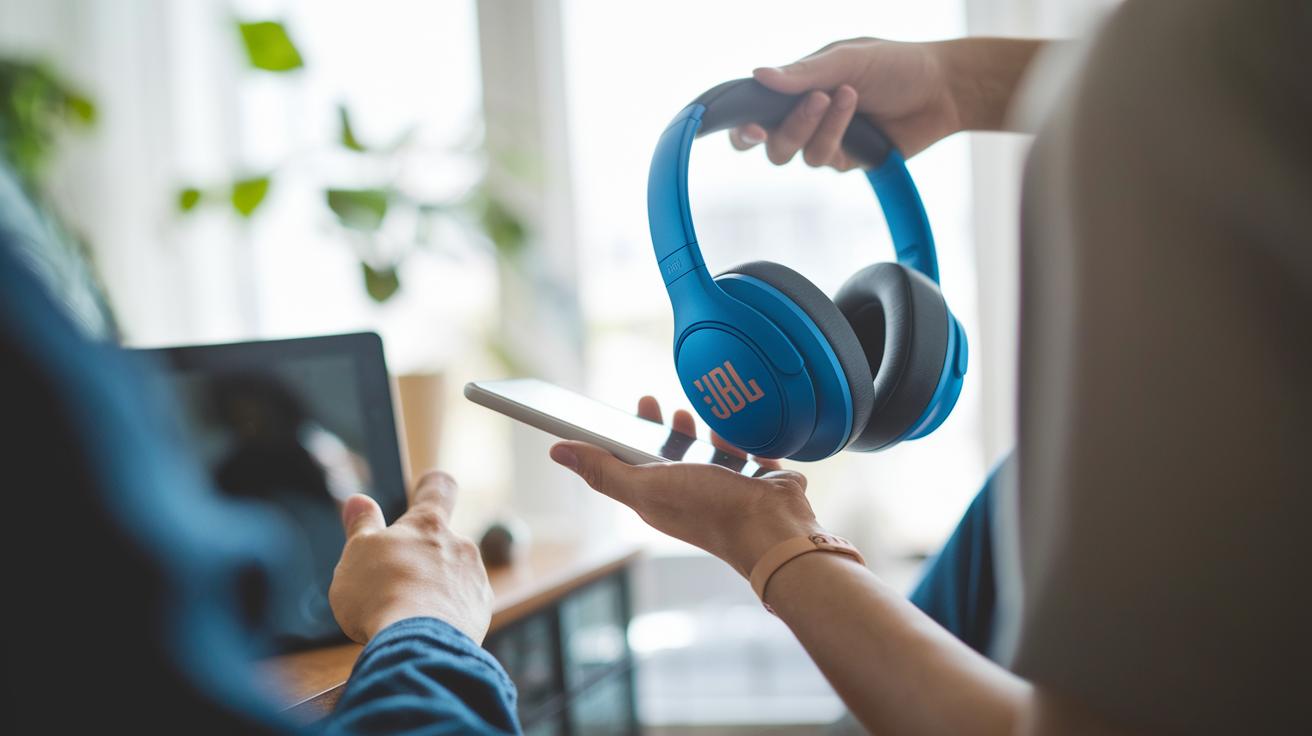
Connecting your JBL headphones is easy no matter which gadget you use. Just follow these simple steps for your device.
Android & iPad Pairing Steps
For Android devices, open the Settings app and tap on Connected Devices. Next, tap Pair New Device and select "JBL Headphones" when they show up on the screen. This works well for nearly every JBL model.
On an iPad, the process is nearly the same. Open Settings, tap Bluetooth, and then tap "JBL Headphones" once they appear. It’s a quick, smooth setup that fits right in with the iPad’s simple design.
iPhone Pairing Tricks
To pair with an iPhone, start by opening Settings and going to Bluetooth. Tap "JBL Headphones" when you see them. If the phone connects but no sound comes through, open the Control Center and adjust the audio settings to refresh the connection.
If you run into issues, try forgetting the device in your Bluetooth settings first. Removing old connections can fix conflicts and give you a fresh start with your iPhone.
Windows & Mac Laptop Pairing Guide
For Windows 10 or 11, open Settings and then Bluetooth & Devices. Click on Add Device, choose Bluetooth, and select "JBL Headphones" when it appears. This clear method makes sure you don’t get lost during the setup.
On a Mac, open System Preferences and click on Bluetooth. Locate the JBL listing and hit Connect. The simple macOS interface makes managing your paired devices a breeze.
Troubleshooting Common JBL Pairing Issues
If your JBL device isn't connecting, try these simple fixes. Often, small issues like a low battery or interference can block the connection.
- Low battery: Make sure your headphones are charged above 20% before pairing.
- Outdated firmware: Open the JBL Headphones App and update to the latest firmware.
- Interference: Set up your device away from Wi-Fi 6 routers, microwaves, or smart LEDs.
- Old pairings: Remove previous Bluetooth connections from your device’s settings.
- Pairing mode: Hold down the power button a bit longer until the LED flashes clearly.
First, check your battery level and refresh your Bluetooth settings. If an update is available, install the latest firmware to boost performance. Next, clear out any old connections by deleting them from your Bluetooth menu. Lastly, avoid areas with potential interference to help your JBL headphones connect smoothly.
Advanced Pairing Features for JBL Tour, Tune, and Everest Series
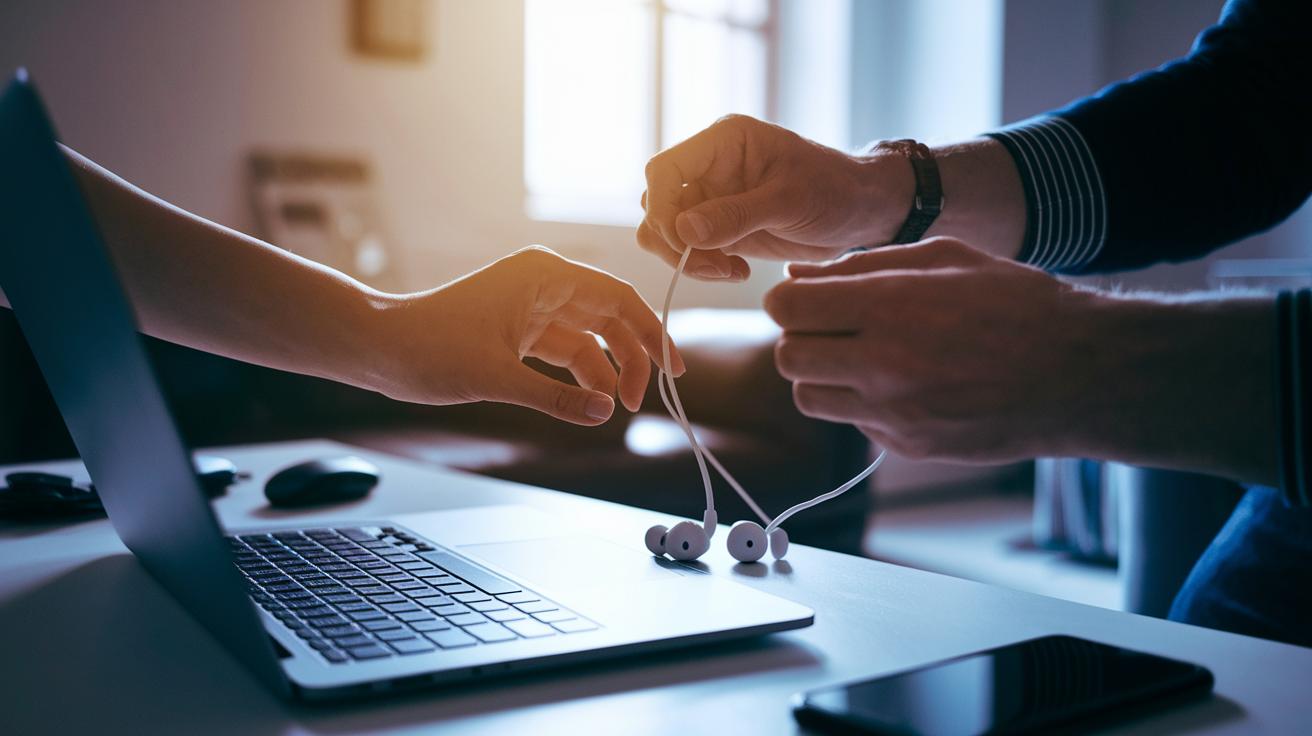
Many JBL models now include smart pairing features that save you time. They allow you to easily switch between devices or enjoy a true wireless experience without any extra fuss.
Dual-Device Pairing Setup
Top models like the JBL Tour Pro 2 and Live 660NC let you connect two devices at once. First, pair your initial device using the normal process. Next, press and hold the Play/Pause and Power buttons together for 2 seconds until the LED shows it is ready. This lets you move between your smartphone and laptop in a snap without having to start over.
JBL Earbuds Auto-Pairing
JBL earbuds, especially those in the Tune and Reflect series, start pairing as soon as you take them out of their case. Once removed, they quickly show up on your device’s Bluetooth list. This auto-pair feature makes it fast and easy for you to connect and get moving.
Reset and Firmware Update Procedures for JBL Headphones
If your JBL headphones misbehave, a reset or firmware update might fix the issue. A reset clears old pairing data and refreshes the connection history. Firmware updates, which you can install through the JBL Headphones App, fix software glitches that can cause pairing errors. This helps keep your Bluetooth connection stable and smooth.
These updates bring your headphones back to a reliable state without having to change all your settings. A proper reset gives you a fresh start, and updated firmware helps prevent the same issues from coming back. This approach is ideal when simple pairing fails and you need a more complete fix.
- For iPhone models: Hold the Power and Volume Up buttons together for 10 seconds until the LEDs flash. Then, open Bluetooth settings and remove the device.
- For other JBL models: Hold the Power and Volume Down buttons for 5 seconds to perform a factory reset. (Check your model manual for details.)
- Open the JBL Headphones App to check for and install any firmware updates.
Before reconnecting, double-check that your Bluetooth settings no longer have any old pairings.
Final Words
In the action of pairing, we outlined a simple guide that covers a universal protocol for every JBL model, device-specific steps for smartphones, tablets, and computers, troubleshooting tips for common issues, and advanced pairing tricks. We broke down each process to make how to pair jbl headphones clear.
The guide shows that careful following of the steps leads to a smooth connection. Enjoy the ease and efficiency that comes with each pairing method, your JBL experience is set for success.
FAQ
How to pair JBL headphones to smartphones (iPhone and Android)?
Pairing JBL headphones with a smartphone involves holding the power button for about 2 seconds until the LED flashes, then turning on Bluetooth in your device and choosing “JBL Headphones” from the list.
How to pair JBL headphones to a laptop or PC?
To connect your JBL headphones to a laptop or PC, hold the power button until the LED flashes, open the Bluetooth settings on your computer, and select “JBL Headphones” from the available devices.
How do I put JBL headphones in pairing mode?
Putting JBL headphones in pairing mode requires holding the power button for around 2 seconds until the LED starts flashing. This signals that the headphones are ready to be paired with your device.
Which button is the JBL headphones Bluetooth pairing button?
The power button on JBL headphones is also the Bluetooth pairing button. Holding it down for a few seconds will trigger the flashing LED which indicates the device is in pairing mode.
How to pair JBL Tune 510BT headphones?
To pair the JBL Tune 510BT, turn them on and press the power button until the LED flashes. Then, enable Bluetooth on your device and select “JBL Headphones” to connect.
How to pair JBL Headphones 770NC?
Pairing JBL Headphones 770NC involves holding the power button until the LED flashes, then opening your device’s Bluetooth settings and selecting the headphones from the list to complete the pairing.
How to put JBL Go in pairing mode?
For JBL Go, simply turn it on and hold the power button until the LED flashes rapidly. Next, open your device’s Bluetooth menu and tap “JBL Headphones” to establish the connection.
Why won’t my JBL headphones show up on Bluetooth?
When your JBL headphones don’t appear on Bluetooth, ensure they are in pairing mode, have enough battery, and any old connections are removed from your device’s Bluetooth settings.