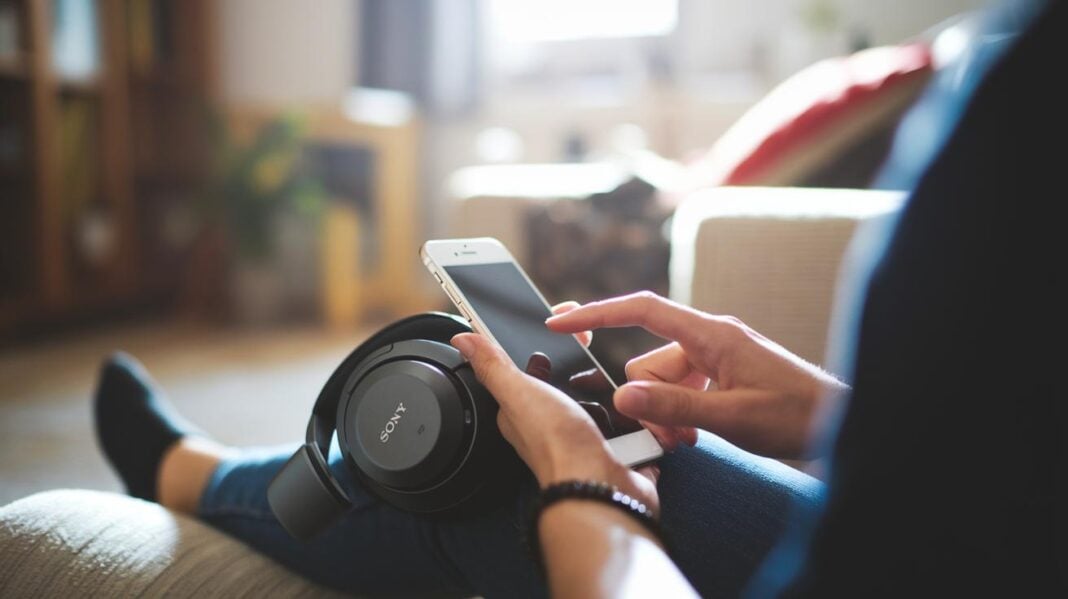
Have you ever been frustrated when your headphones won’t connect? We’ve all been there. In this guide, we show you a quick and easy way to connect your Sony Bluetooth headphones so you can start listening to your favorite tunes without delay.
First, make sure your headphones are fully charged. Next, turn on the Bluetooth on your device. Finally, press and hold the power button on your headphones until they pair with your device. Follow these simple steps and enjoy great sound in just minutes.
2. how to connect sony bluetooth headphones: Fast
Before you begin, make sure your headphones are charged, your device’s Bluetooth is on, and the headphones are close by. This setup helps secure a stable connection.
- Press and hold the power button on your headphones for 2 to 7 seconds until the LED flashes blue and red.
- If you have WF-C700N earbuds, open the charging case first, then press and hold the button until they enter pairing mode.
- Open your device’s Bluetooth settings and look for your Sony model (for example, WH-1000XM4) in the list.
- Tap the model name and wait a few seconds while the pairing completes.
- Once the LED turns a steady blue, your headphones are successfully connected.
Your Sony Bluetooth headphones are now ready to use.
Enabling Pairing Mode on Sony Bluetooth Headphones
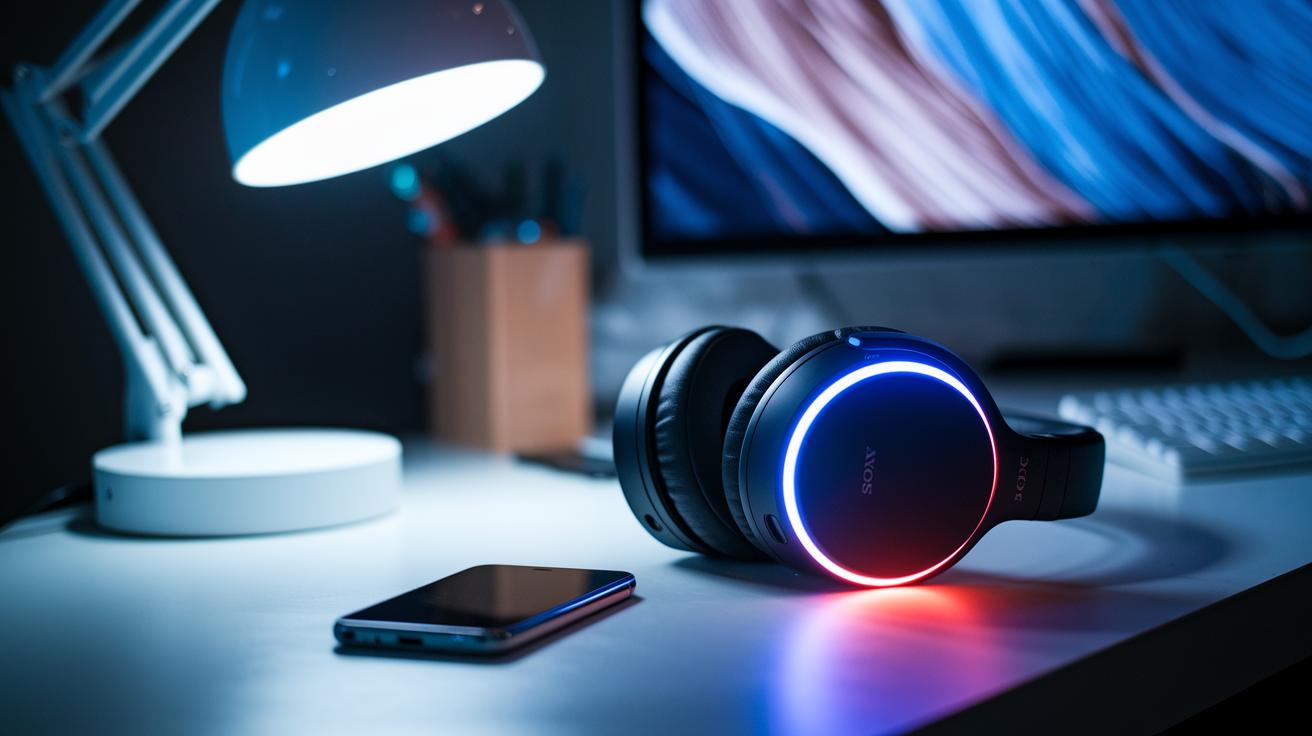
To start pairing your Sony Bluetooth headphones, hold down the power button or the dedicated pairing button. Watch for the LED light to alternate between blue and red. This flashing pattern tells you the headphones are ready to connect.
- WH-1000XM4: Press and hold the power button until the LED flashes blue and red.
- WF-1000XM3: Keep holding the power button until you see the blue and red light pattern.
- WF-C700N: Open the charging case and then press and hold the button until the LED shows blue and red flashes.
Note: A blinking blue and red light means the headphones are in pairing mode. If the LED stays blue, it means they are already connected.
Connecting Sony Bluetooth Headphones to iPhone and iPad
Connecting your Sony headphones to an iPhone or iPad is simple. Start by opening the Settings app on your device and tapping Bluetooth to turn it on. Once Bluetooth is active, your device will look for nearby devices.
Next, put your Sony headphones into pairing mode. Press the power button until the LED flashes blue and red. Your headphones, such as the Sony WH-1000XM4, should soon show up on the list.
Follow these steps:
- Open the Settings app and enable Bluetooth.
- Activate pairing mode on your Sony headphones by pressing the power button until the LED flashes.
- When your Sony headphones (e.g., WH-1000XM4) appear on the list, tap on them.
- Confirm the pairing, which should complete in under 10 seconds.
iOS devices also support multipoint reconnection. If your headphones were recently paired with another iOS device, simply selecting them in the Bluetooth list will quickly reconnect them without needing to go into pairing mode again.
Connecting Sony Bluetooth Headphones to Android Phones and Tablets
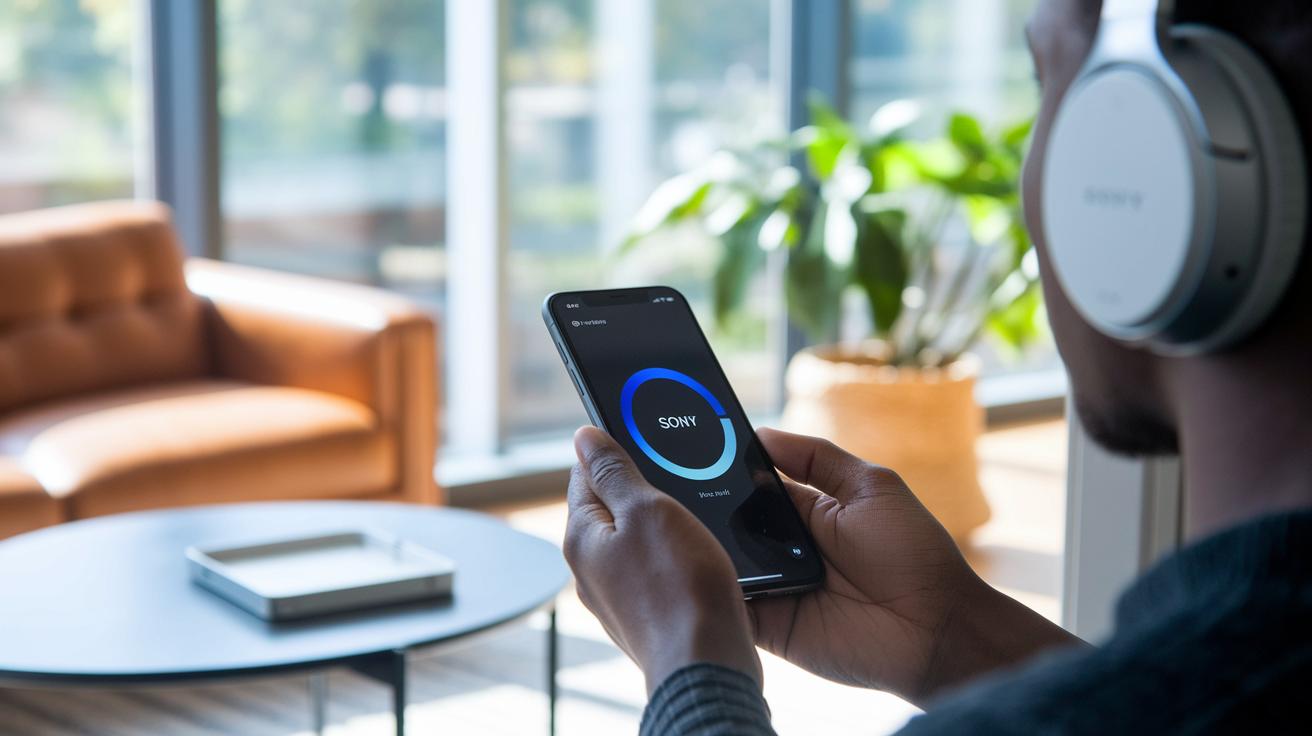
Android devices can have different menus for Bluetooth. On many phones and tablets, you will find Bluetooth settings under Settings > Connected devices. If your device looks different, check its user guide.
- Open Settings and look for Connected devices or a similar option.
- Tap Pair new device to scan for available gadgets.
- Press and hold the power button on your Sony headphones until the LED flashes blue and red. This means the headphones are in pairing mode.
- When your headphone model (for example, Sony WH-1000XM4) appears on the list, tap it to start pairing.
- Wait a few seconds until you see a steady LED color, which confirms the connection.
For extra features like firmware updates or sound customization, try the Sony Headphones Connect app. It is optional but helpful if you want to keep your headphones updated or adjust settings for a better listening experience.
Linking Sony Bluetooth Headphones to Windows PCs and macOS
Pairing your Sony Bluetooth headphones with your desktop is fast and simple. Both Windows PCs and macOS let you add your wireless audio device with just a few clicks. On Windows 10 or 11, go to the Bluetooth settings under Devices and add your headphones while they're in pairing mode. On macOS Ventura or later, open System Settings, turn on Bluetooth, and click your headset when it appears. Both methods take less than 20 seconds, so you can start enjoying your music right away.
| Device | Navigation Path | Selection Process |
|---|---|---|
| Windows PC | Settings > Devices > Bluetooth & other devices > Add Bluetooth | Put your headphones in pairing mode and select them from the list |
| macOS | System Settings > Bluetooth | Turn on Bluetooth, then click your headphones once they appear |
Once paired, check your sound settings to ensure your Sony headphones are the default audio output. This setting makes sure your computer sends all sound to your preferred wireless device for a smooth listening experience.
Troubleshooting Common Connection Issues with Sony Bluetooth Headphones
Restart and Re-Pair
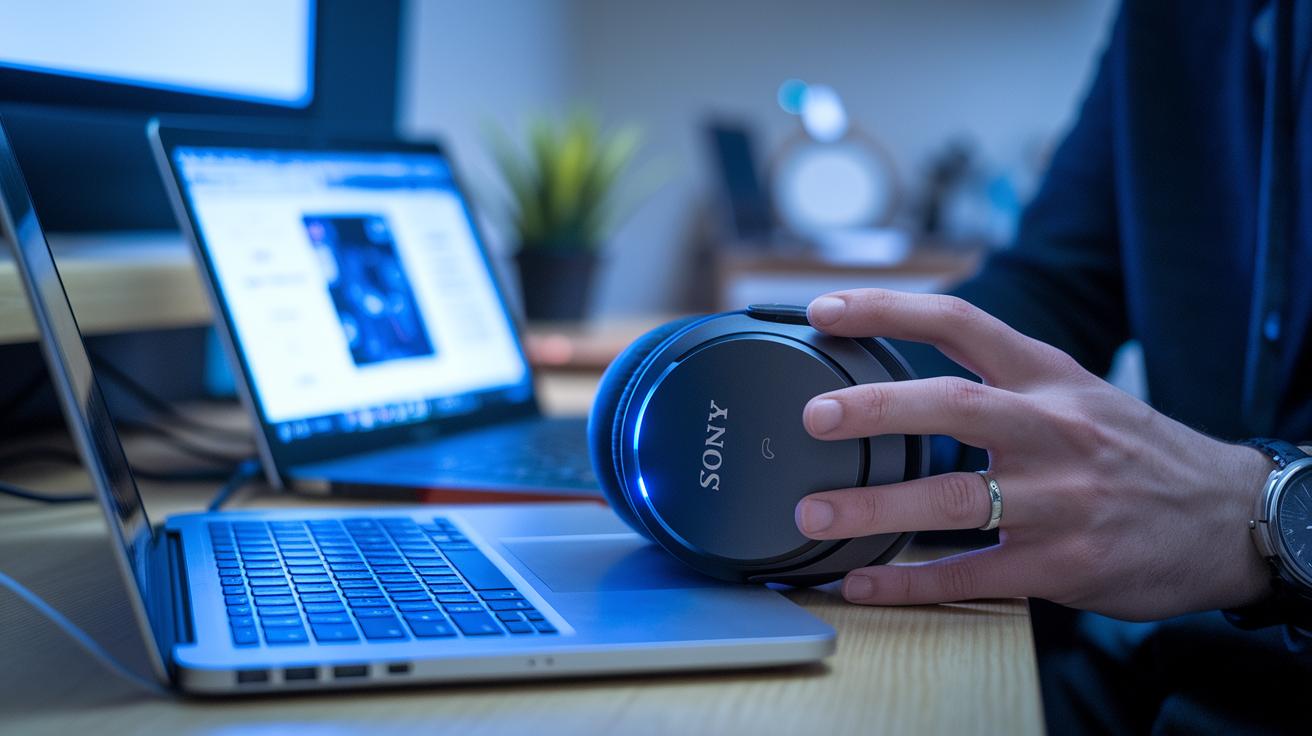
If your Sony Bluetooth headphones start acting up, try turning your device’s Bluetooth off and then back on. We often find that rebooting your phone or computer along with the headphones clears out small glitches. For example, if your streaming drops out suddenly, switching Bluetooth off for a few seconds and then back on can help forge a stable link.
Reset Headphones
If restarting doesn't solve the problem, a factory reset might be the next step. Hold the power button and the volume down button for 7 seconds until you see a reset sign on the LED. This wipes out old pairing data and often resolves stubborn connection issues. Just be sure no other nearby Bluetooth gadgets, within about 30 ft, are interfering during the reset.
Update Firmware
Another fix is to update your firmware. Open the Sony Headphones Connect app to check your current firmware version and download any available updates. Updated firmware can boost pairing stability and fix known bugs. Make sure your device has a stable internet connection during the update so nothing interrupts the process.
- Turn Bluetooth off and on in your device settings
- Restart your smartphone or computer
- Reboot your Sony headphones
- Factory reset: Hold power and volume down for 7 seconds
- Stay clear of other active Bluetooth devices within 30 ft
- Update firmware using the Sony Headphones Connect app
Advanced Pairing Techniques and Bluetooth Multipoint for Sony Headphones
Setting Up Multipoint Pairing
Sony headphones with multipoint support let you connect two devices at the same time. First, pair your headphones with your primary device the normal way. Next, press and hold the power or pairing button until the LED flashes blue and red. Then, open Bluetooth settings on your second device and select your headphone model from the list. This process adds a second connection while keeping the first active. For example, with the WH-1000XM4, you can have your smartphone and laptop connected at the same time so that calls come in on your phone while music plays from your computer.
Switching Active Connections
Once multipoint pairing is set up, the headphones switch between devices automatically when one starts playing audio. You can also change active connections by pausing one device and resuming playback on the other. Some Sony models let you use simple control buttons to toggle between devices without digging into settings. The headphones give priority to the device that plays audio, so if one stops, the other takes over.
Supported Models:
- Sony WH-1000XM4
- Sony WH-1000XM5
Firmware Updates and Best Practices for Smooth Sony Headphone Connections
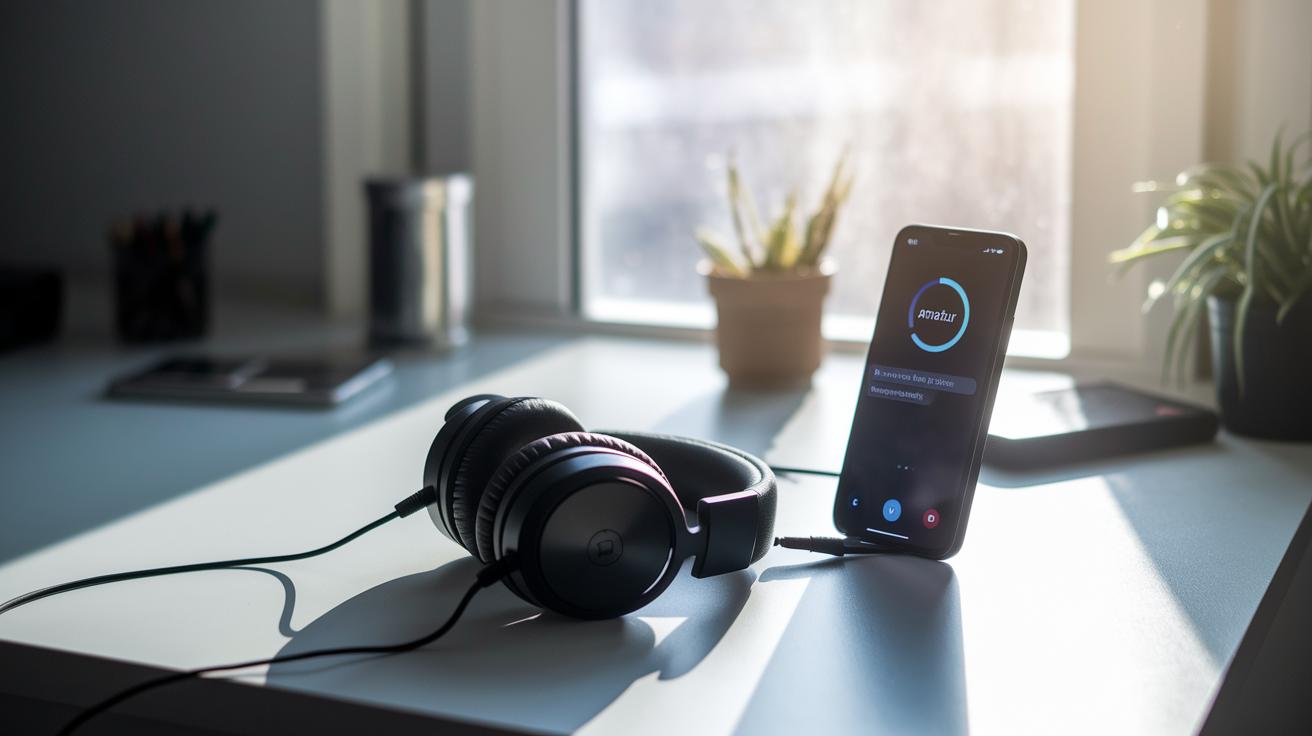
Firmware is the software that helps your Sony headphones talk to your device. If it’s outdated, pairing can get slow or drop out. With the Sony Headphones Connect app on iOS and Android, you can easily check for new updates.
- Open the Sony Headphones Connect app on your iOS or Android device.
- Check the current firmware version.
- Install any available update.
- Restart your headphones after updating.
Make sure your internet connection is steady during the download to avoid any interruptions.
On Windows, open Device Manager. Find your Bluetooth adapter, right-click it, and choose Update driver. On macOS, use Software Update to ensure your Bluetooth components are up to date. If the firmware update doesn’t fix the connection issues, updating your drivers may help stabilize pairing.
Frequently Asked Questions on How to Connect Sony Bluetooth Headphones
Below are some common questions with quick answers to help you set up and fix issues with your Sony Bluetooth headphones.
-
Q: Why won't my Sony headphones appear in the Bluetooth list?
A: Reset your headphones and try pairing again. A quick reset can clear small glitches that stop them from showing up. -
Q: How do I reconnect without opening the case?
A: Try multipoint connectivity or let your device use the last connection. Many Sony models will reconnect automatically if they were paired before. -
Q: Can I pair more than two devices?
A: No, multipoint connectivity only supports two devices at a time. This keeps the connection stable. -
Q: Do I need the Sony Headphones Connect app?
A: The app is only needed for firmware updates and advanced settings. For basic pairing, just use your device's built-in Bluetooth settings.
For more details and extra troubleshooting, check the online manual.
Final Words
In the action, we broke down the steps for setting up your Sony Bluetooth headphones, from entering pairing mode to connecting with iPhone, Android, and desktop devices. We covered pairing, troubleshooting common issues, advanced multipoint pairing, and firmware updates. Each section provided easy-to-follow steps to help you get up and running quickly. This guide shows you exactly how to connect sony bluetooth headphones while offering tips and quick fixes. Enjoy hassle-free wireless listening and feel confident in your setup.
FAQ
How do I connect my Sony Bluetooth headphones to devices like an iPhone, phone, or laptop?
Connecting Sony headphones is simple. First, turn on Bluetooth on your device. Next, put your headphones in pairing mode and then choose the headphone model from the Bluetooth list.
How do I put my Sony Bluetooth headphones, such as the WH-1000XM4, into pairing mode?
Activating pairing mode starts by pressing and holding the power button until the LED flashes blue and red. This indicates your Sony headphones are ready to pair.
How do I pair Sony WF series earbuds like the WF-C500 and WF-1000XM4?
Pairing Sony WF earbuds means removing them from the case if needed and holding the touch sensor or button until the LED blinks. Then, select the earbuds from your device’s Bluetooth settings.
Why aren’t my Sony headphones showing up on Bluetooth?
When your Sony headphones do not appear, they may not be in pairing mode. Ensure they are on, charged, and close to your device. Restart both devices to clear any temporary connection issues.
How do I connect Sony models like WI-C100 and WH-CH520?
To connect models such as the WI-C100 or WH-CH520, start by entering pairing mode by holding the appropriate button. Then, locate and select the model from your device’s Bluetooth list.