Ever thought your AirPods could boost your computer experience? Pairing these wireless earbuds with your Windows PC is easier than you might expect. This guide walks you through connecting your AirPods using Bluetooth on both Windows 10 and Windows 11. With clear, step-by-step instructions, you can enjoy better sound in just minutes. No more tangled wires, just clear audio for your music, video calls, or movies. Get ready for a fast, smooth, and simple setup that powers up your everyday tasks.
Step-by-Step Guide to Connect AirPods to PC via Bluetooth
Connecting your AirPods to a PC is easy and straightforward. This guide works on both Windows 10 and Windows 11. With just a few taps, you can pair your AirPods to listen to music, join video calls, or watch your favorite shows. Follow these steps and you'll have a smooth connection.
- Open Windows Settings and select Devices.
- Click Bluetooth & other devices on the sidebar.
- Turn on Bluetooth if it is not already enabled.
- Hit "Add Bluetooth or other device" and then choose "Bluetooth."
- Put your AirPods in their charging case, close the lid, wait a few seconds, then open the lid.
- Press and hold the setup button on the case until the light starts flashing white. This means the AirPods are ready.
- Tap on "AirPods" from the list to finish the pairing.
Once done, your AirPods will be connected and ready for use. You'll now have a reliable audio setup for your daily tasks.
connect airpods to pc: Instant, Effortless Connection
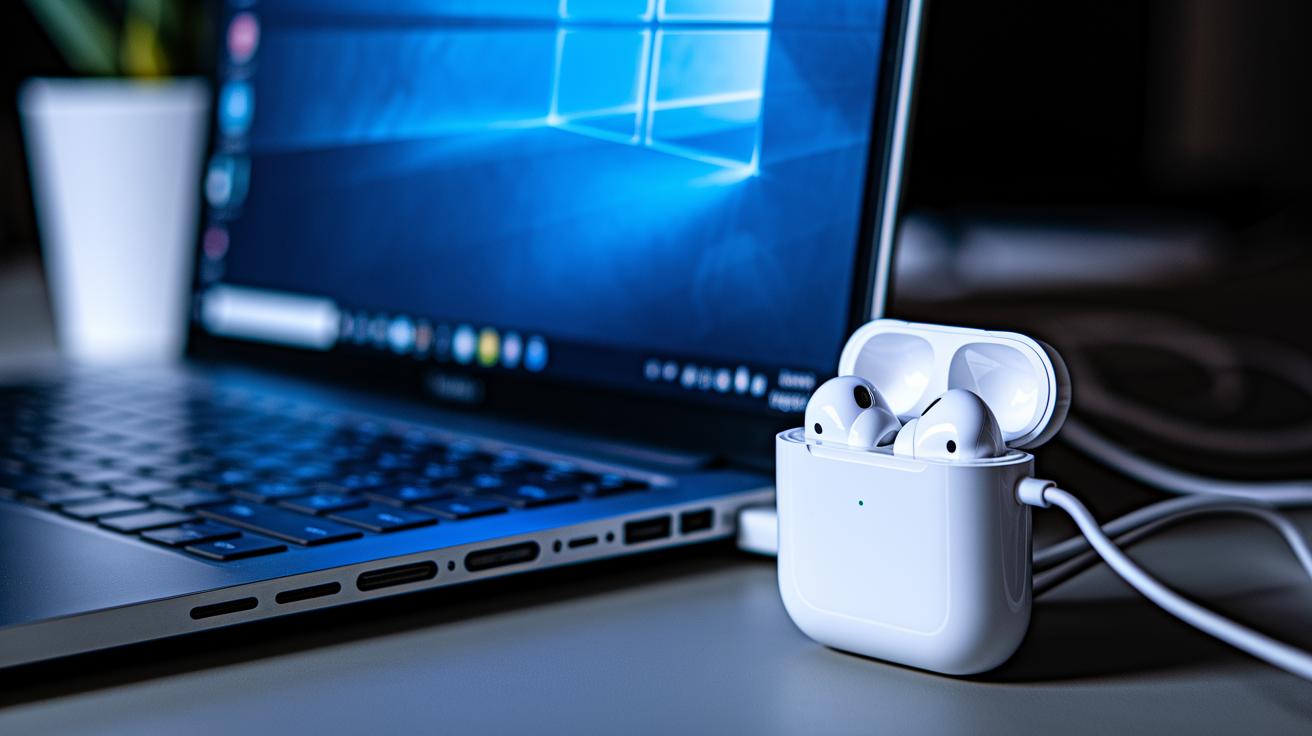
Before you start, check that your AirPods are charged to at least 20%. Keep them in their open case so they are ready to pair with your computer. This simple check helps avoid connection issues when the battery is low.
Next, make sure Bluetooth is turned on your Windows PC. Go to Settings and select Bluetooth & other devices. This works for both Windows 10 and Windows 11. Also, confirm that your PC has the latest Bluetooth drivers by checking for Windows updates. Updated drivers help your AirPods work smoothly and provide a steady connection.
Troubleshooting Common Connection Issues with AirPods on PC
When your AirPods have trouble pairing, first check that they hold at least 20% battery and are set for pairing. Sometimes, the AirPods or your PC may not catch the pairing request, so a quick retry often clears the issue.
If the problem continues, remove your AirPods from the Bluetooth list on your PC. Go to Settings > Devices > Bluetooth & other devices, find your AirPods, and choose "Remove device." Next, press and hold the setup button on the AirPods until the white light flashes. This puts them back into pairing mode and resets the connection.
You might also notice brief audio dropouts if other Bluetooth devices are in range or if you are more than 30 feet from your PC. This extra distance or interference can cause short interruptions during music playback or video calls. Keeping your devices closer helps reduce these dropouts.
Sometimes a simple restart of your PC or turning Bluetooth off and on in Settings can bring back a stable connection. This refreshes the Bluetooth services and often resolves any lingering issues, making sure your AirPods work reliably.
Optimizing Windows Audio Settings for Connected AirPods
After you pair your AirPods, open the Sound Control Panel and set them as your default playback device. This sends all your PC's sound directly to your AirPods. For example, when you watch a video, the audio flows straight through without any extra switching.
Next, change the default audio format to 16-bit, 44.1 kHz. This mix helps you get clear sound while keeping performance steady. We also suggest turning off audio enhancements because they can add unwanted delays. Think of it like tuning into a clear radio channel for smoother playback.
If you're using Windows 11, take a look at the Spatial Sound settings. This option makes the sound feel as if it surrounds you, which is especially nice when streaming videos or listening to music. It gives your AirPods a boost in performance without much extra effort.
Pairing AirPods Pro and AirPods Max with Your PC
When connecting your AirPods Pro or AirPods Max to a PC, the steps are a little different from other Bluetooth devices. For AirPods Pro, put them in the charging case and press the setup button until the white light flashes. This signals that they are ready to pair. For AirPods Max, press and hold the noise control button until you see a white LED flash. That flash means your AirPods Max have entered pairing mode.
Once the white light appears, open your PC's Bluetooth settings and select your AirPods from the list. At this point, your earbuds should connect automatically.
After you have paired them, you can control playback and adjust features such as Active Noise Cancellation using your PC's media keys or the buttons on the earbuds. A quick test is to press the play/pause button and see if your music stops and starts as expected.
Enhancing Your PC Setup with External Bluetooth Adapters for AirPods
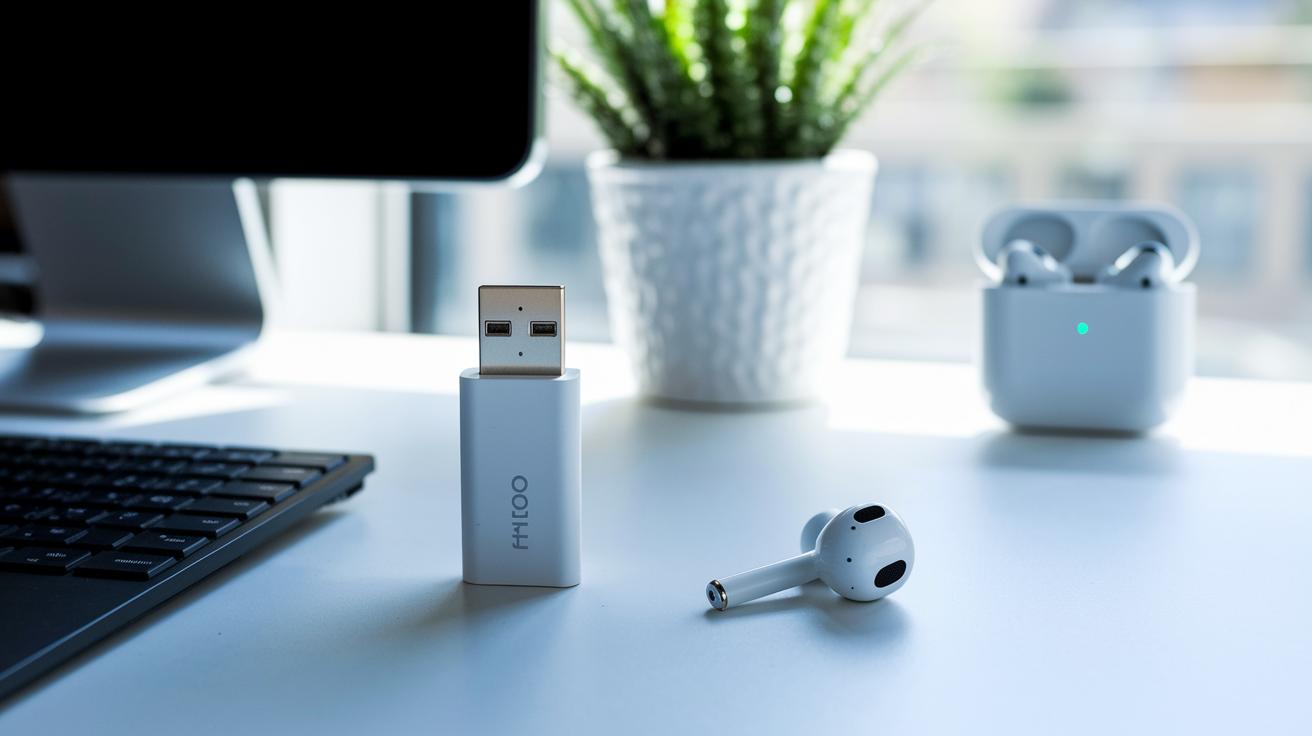
If your PC doesn’t have Bluetooth built-in or uses old drivers, a USB Bluetooth 5.0 adapter is a great fix. It delivers a steady, long-range signal so you can easily pair your AirPods. Most adapters are plug-and-play, which means Windows will recognize them without extra software. Top models can cover up to 50 feet and include advanced codecs (signals that help reduce dropouts) for smoother streaming and calls.
When picking an adapter, look for one known for connecting well with wireless earbuds. Make sure it fits snugly into a front USB port so nothing blocks the signal. Many adapters are budget-friendly and still offer solid performance. Follow these tips for a clearer sound and fewer interruptions, keeping your AirPods connected reliably all day.
Final Words
In the action, this guide laid out a clear plan to connect AirPods to PC. It walked through turning on Bluetooth, checking AirPods’ battery, and using a step-by-step pairing process on Windows 10 and 11. It also covered troubleshooting tips, audio settings tweaks, and even using a USB Bluetooth adapter for better reach.
Enjoy a seamless setup as you connect airpods to pc for music, calls, and more.
FAQ
How do I connect my AirPods (AirPods 4, AirPods Pro, and AirPods Pro 3) to a Windows PC or laptop?
Connecting AirPods to a Windows PC is simple. First, ensure your PC’s Bluetooth is on and your AirPods have enough battery. Then, press and hold the setup button until the light flashes white and select “AirPods” in Bluetooth settings.
How do I connect my AirPods to a PC that lacks built-in Bluetooth?
Connecting AirPods to a PC without built-in Bluetooth requires a USB Bluetooth adapter. Plug in the adapter, let Windows detect it, and then use the standard pairing process with your AirPods set in pairing mode.
How do I connect my AirPods to my MacBook?
Connecting AirPods to a MacBook is straightforward. Open the Bluetooth settings on your MacBook, make sure your AirPods are in pairing mode, and then choose your AirPods from the list to complete the connection.
How can I make my AirPods discoverable and put them in pairing mode?
Making your AirPods discoverable means placing them in their case and holding down the setup button until the status light flashes white. This shows they’re in pairing mode and ready to connect.
Why might my AirPods not show up on Bluetooth when I try to connect?
If your AirPods don’t appear, they may not be in pairing mode, the battery might be low, or your PC’s Bluetooth drivers could be outdated. Check these factors to help your AirPods appear in the device list.